How do you safely keep using a smart TV that no longer gets updates?
Ways to keep an out-of-support television in service without turning it into the weak point of your home network.
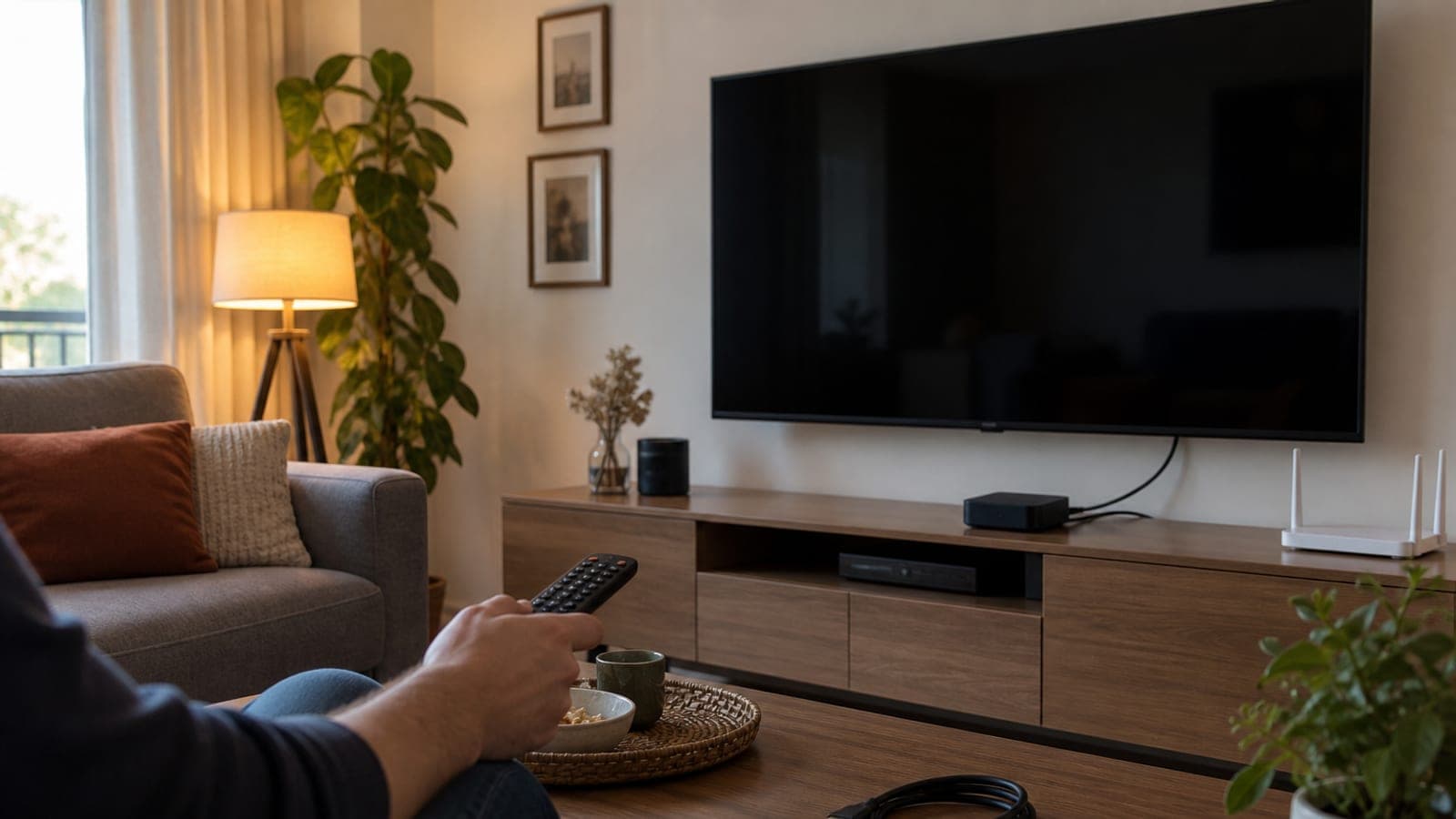
Short answer
If your TV has stopped receiving updates, sign out of every app, disable the microphone and camera, then run a factory reset. After that, either take the TV off the internet entirely and hand streaming duties to an external box (Chromecast, Fire TV Stick, Apple TV), or move it onto your router's guest network so it is separated from your main devices.
What you need
Step by step
Check the support status
Open Settings, go to Support or Device Care, then Software Update and look at the date of the last update. If nothing has arrived in more than two years, look up your model number on the manufacturer's support site. On an end-of-support device, disclosed security holes are no longer patched.
Sign out of every app
Open each service one by one, including Netflix, YouTube, Amazon Prime Video and Disney+, and pick Sign Out from its Settings section. You do not want saved card details or your email address sitting on the TV. Using the "sign out of all devices" option on each service's website is more reliable still.
Turn off the microphone and camera
Some models have a built-in microphone or camera. Samsung and Fire TV sets often have a physical switch on the bezel that cuts the voice assistant, while brands like Hisense hide the microphone toggle in the Accessibility menu. If your model has a camera, disable it from the main menu and put tape over the lens to be sure.
Run a factory reset
In Settings or Options, use the entry labelled Reset, Factory Reset or Restore Factory Settings. This goes a step beyond signing out: it wipes the Wi-Fi password, accounts and search history. Photograph any picture settings you fine-tuned, because those get wiped too.
Hand streaming to an external box
Instead of the TV's own smart features, plug a Chromecast, Fire TV Stick or Apple TV into an HDMI input. These boxes get updates for years and cost a fraction of a new television to replace. The TV becomes a display while the smart part stays current.
Move the TV to a separate network or unplug it
If the TV does not need internet access, turn off Wi-Fi in the Network menu and unplug the Ethernet cable; an offline device cannot be reached remotely. If it must stay online, open your router's admin page (usually 192.168.1.1), enable the guest network and connect the TV to that. Your computer, phone and NAS then stay invisible to it.
Set up local broadcast and media playback
An offline TV still handles antenna, satellite and cable broadcasts normally. For films and series, plug in a USB stick or external drive and use the built-in media player. This setup turns the set into a "dumb TV": no loss in picture performance, a clear gain in security.
Tips
Watch out
A factory reset cannot be undone: saved channels, picture calibration and app sessions are erased completely. On some models, cutting internet access also breaks the app store and streaming services for good, and the setup wizard can get stuck waiting for a connection. Write your settings down first and make sure the remote has fresh batteries.
Frequently asked questions
+How many years of security updates does a smart TV get?
Most brands promise at least two years, and some stretch to four or five. Look up your model number on the manufacturer's support page to see the date of the last firmware release.
+Is an un-updated television really a danger?
It is not a threat watching you directly, but it becomes the weakest link on your home network. An unpatched device can be used as a stepping stone toward the computers and phones sharing that network.
+What is the difference between a guest network and the main network?
A guest network reaches the internet but cannot see the other devices on the same router. Even if the TV is compromised, it cannot reach your computer, phone or backup drive.
+Wouldn't buying a new TV be better than an external streaming box?
It works, but it is the expensive route. If the panel is still fine, an inexpensive streaming stick does the same job, and when it ages you only replace the stick.
+Do satellite and antenna channels stop working if I take the TV offline?
No. Antenna, satellite and cable broadcasts run independently of the internet, and USB playback is unaffected. Only the app store and online services go away.
Sources and verification
Published: September 12, 2026. tell us. Adapted from a Turkish source; local streaming services were replaced with internationally available equivalents.
This content is for information only; for official procedures the relevant institution’s current announcements take precedence. Details: disclaimer.