How do you change your Wi-Fi password?
Open your router's admin page in a browser and set a new wireless password yourself in about ten minutes.
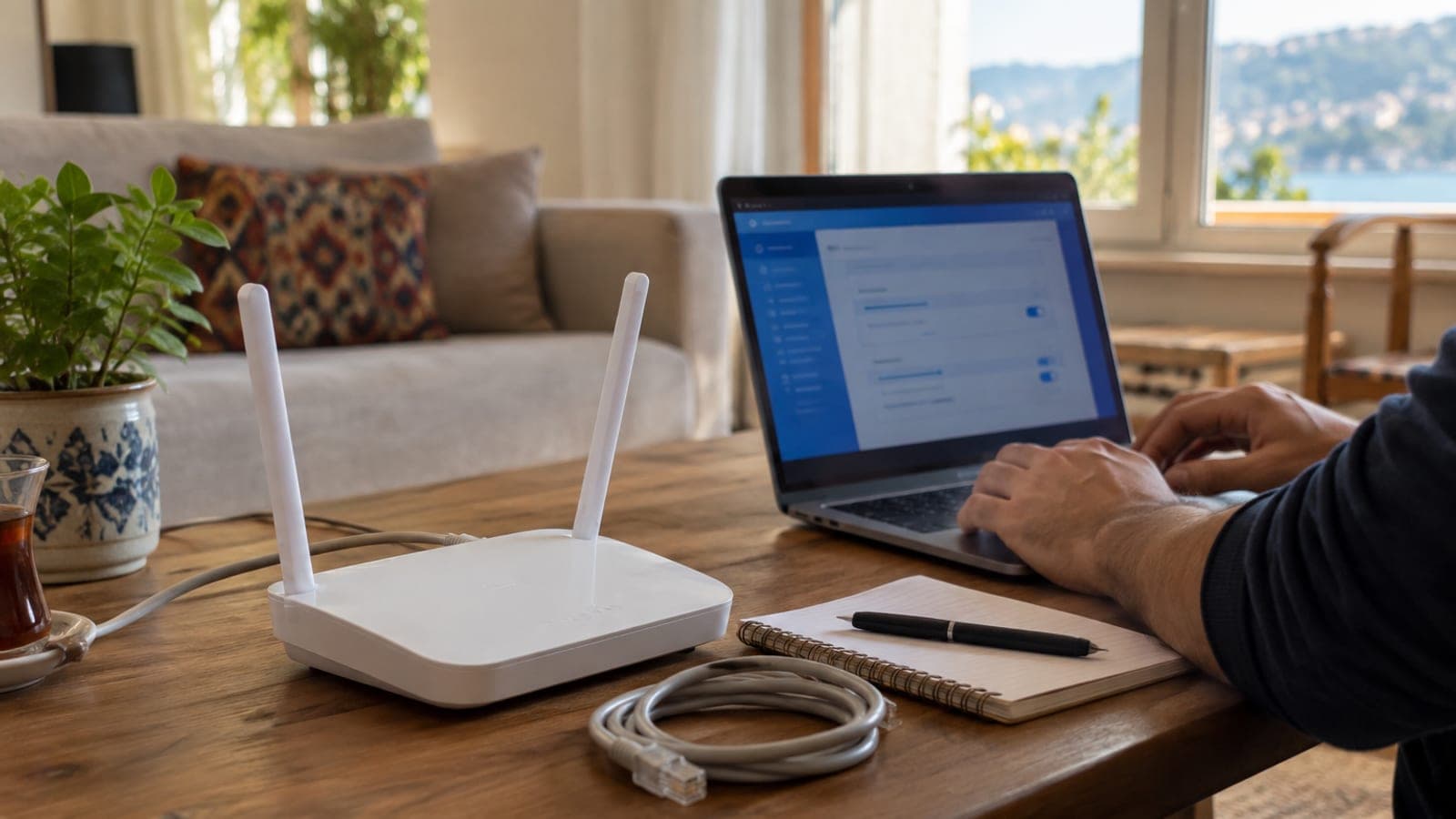
Short answer
Connect to the router over Wi-Fi or cable, open 192.168.1.1 in a browser and sign in with the details on the router's label. Under Wireless / WLAN, open the Security tab, keep WPA2-PSK selected, enter a new password of at least 12 characters and press Save/Apply. The router drops the wireless for 30-60 seconds, then reconnect every device.
What you need
Step by step
Read the router label
Turn the router over and look at the sticker underneath. It lists the admin address (usually 192.168.1.1 or 192.168.0.1), the login username and password, and the factory Wi-Fi details. Photograph those three items with your phone so you have a fallback if a wrong entry locks you out.
Connect to the router
Plug your computer into one of the yellow LAN ports with an Ethernet cable, or join the existing Wi-Fi network with the current password if you have no cable. Turn mobile data off, otherwise your phone looks for an answer on the internet instead of the router. The admin page will not load until the device is on the router's network.
Sign in to the admin page
Type http://192.168.1.1 into the address bar of Chrome or Safari and press Enter. Enter admin as the username in most cases, and the password printed on the label, which is often admin or an 8-character code. Make sure you typed it in the address bar and not in a search engine.
Open the wireless security settings
In the left menu choose Wireless or WLAN, then the Security sub-tab, sometimes labelled WPS/WPA. On ZTE and Huawei units it sits under Network > WLAN > WLAN Basic Settings. If the 2.4 GHz and 5 GHz networks are listed separately, you have to edit both.
Enter the new password
Set the encryption type to WPA2-PSK (AES) and never pick WEP or None. Clear the old value in the WPA Pre-Shared Key or Passphrase field and type your new password of at least 12 characters, using only standard Latin letters and numbers. Tap the eye icon to check what you typed.
Save and wait for the router
Press the Save, Apply or OK button at the bottom of the page. The router will cut the wireless connection for roughly 30-60 seconds while it writes the setting, which is normal. Do not unplug it during this window, because a half-written setting can leave neither the old nor the new password working.
Reconnect your devices
On each phone and computer, tap your network in the list and choose Forget This Network, then connect again with the new password. This is the fix for devices that keep showing a connection error because the old password is still cached. Work through quiet devices too, such as smart TVs, robot vacuums and cameras.
Tips
Watch out
Poking a pin into the reset hole to restore factory settings should be the last resort. A reset also wipes the PPPoE username and password needed for the internet connection, so if you do not have those details your connection goes down completely and you will have to call your provider's support line.
Frequently asked questions
+I do not know the router admin password. What should I do?
Check the label on the bottom of the router first, since the login details are printed there. If those do not work, call your provider's support line; the account holder can have the password reset after identity verification.
+192.168.1.1 will not open and the page stays blank. Why?
Usually the device is not on the router's network, or the address is different, such as 192.168.0.1. Turn off mobile data, disable any VPN, and type the address from the label into the address bar with http:// in front.
+Will changing the password slow down my internet?
No, a password change has no effect on speed. The only difference is that devices still using the old password drop off, and reconnecting them with the new one is enough.
+Can I use the same password for the 2.4 GHz and 5 GHz networks?
Yes, using the same password on both is the most practical option. The network names can stay different, and devices pick whichever band they prefer based on signal strength.
+Can I change the password from my provider's mobile app?
In most cases yes. Many providers offer a router management section in their app where you can change the Wi-Fi password without opening the browser interface at all.
Sources and verification
Official pages for this process
Published: September 13, 2026. tell us. Menu names follow common operator-supplied routers; wording may differ slightly by brand and firmware version.
This content is for information only; for official procedures the relevant institution’s current announcements take precedence. Details: disclaimer.