How do you try the new Windows 11 Start menu?
Switch to the Windows Insider Dev Channel and test the larger, category-based Start menu on your own PC.
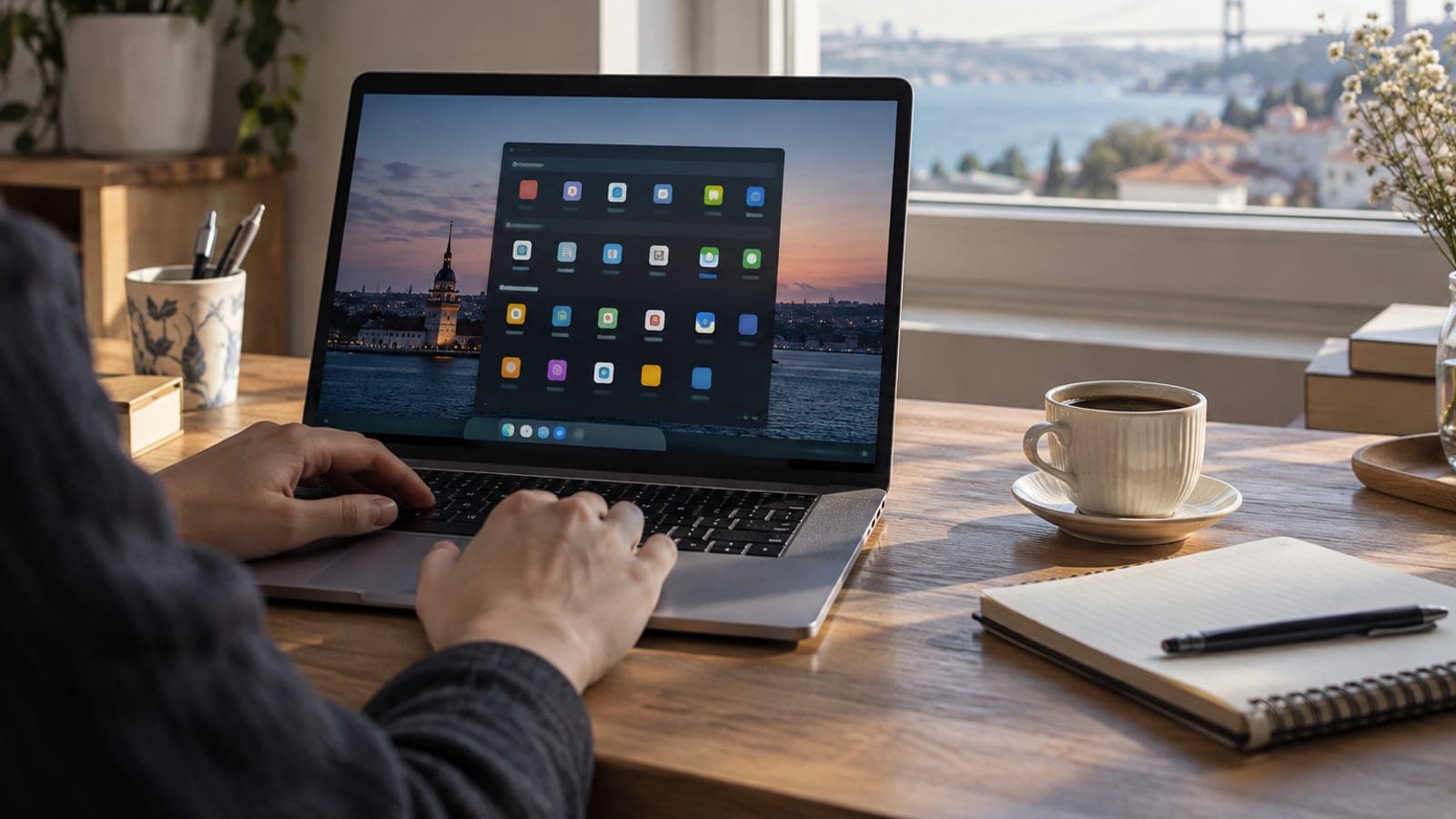
Short answer
Enroll in the Dev Channel from Settings > Windows Update > Windows Insider Program, sign in with a Microsoft account, and restart. Then install Insider Preview build 26200.5641 or newer through Windows Update. Once the menu opens, use the view picker at the top right of the "All" section to choose Category or Grid layout.
What you need
Step by step
Back up first
Insider builds are meant for testing and can be unstable. Copy your documents, photos, and browser profiles to an external drive or OneDrive. If you can, create a system image from Control Panel > Backup and Restore.
Enroll in the Insider Program
Open Settings > Windows Update > Windows Insider Program and click "Get started". Link your Microsoft account, since a local account cannot complete this step. The channel selection screen appears once the account is added.
Pick the Dev Channel
Select "Dev Channel" from the channel list. The new Start menu is currently shipping only here, and it does not appear in the Beta or Release Preview channels yet. Confirm your choice and restart the PC.
Install the new build
Go to Settings > Windows Update and click "Check for updates". Download and install Insider Preview build 26200.5641 or newer, then restart again. The download can run to several gigabytes, so a wired connection is safer.
Choose the menu layout
Click Start; the menu now opens as a single scrollable page. Use the view picker at the top right of the "All" section to switch between Category, which groups the apps you use most, and Grid, a plain alphabetical list.
Turn off recommendations
If you do not want the "Recommended" area at the bottom, open Settings > Personalization > Start and switch off the recommendation toggles. With that area shrunk, more pinned apps fit in the menu.
Prepare your way back
If something goes wrong during testing, open Settings > Windows Update > Windows Insider Program and turn on "Stop getting preview builds". Returning to the stable release usually means a clean install, so keep your backup close at hand.
Tips
Watch out
Dev Channel builds are not for daily use: expect driver conflicts, app crashes, and heavier battery drain. More importantly, moving from the Dev Channel back to stable Windows 11 usually requires a clean install that wipes the disk. Do not test this on the only PC that holds your banking or work files.
Frequently asked questions
+When will the new Start menu reach all Windows 11 users?
Microsoft has not given a date. The feature has been in testing since April and is currently limited to the Dev Channel, so broad rollout will come through regular Windows Update releases.
+Can I use the new menu without joining the Insider Program?
No. The menu is a server-side enabled feature and only exists in Dev Channel builds for now. Forcing it with third-party tools can break system stability.
+Can I go back to the old Start menu?
There is no toggle to restore the old menu inside the new build. You have to move back to the stable release, which in most cases means a clean install.
+Do Insider builds support non-English interface languages?
Yes, Dev Channel builds work with additional language packs. Some strings in the new menu may still appear in English temporarily.
+Will this update affect my license?
No. The Insider Program is free and works with your existing Windows 11 license; you only need to sign in with a Microsoft account.
Sources and verification
Official pages for this process
Published: September 12, 2026. tell us. Menu paths use the English Windows 11 interface labels; localized builds show translated equivalents.
This content is for information only; for official procedures the relevant institution’s current announcements take precedence. Details: disclaimer.