How do you free up storage space on your phone?
A step-by-step route to reclaiming 5-20 GB on Android and iPhone without deleting a single photo.
Short answer
Open Settings > Storage (on iPhone, Settings > General > iPhone Storage) to see what is actually taking up room. Then delete videos over 5 MB from WhatsApp > Storage and data > Manage storage, clear browser and app caches, and back photos up to Google Photos or iCloud before removing them from the device. Those three moves typically return 5-20 GB in 20-40 minutes.
What you need
Step by step
Open the storage report
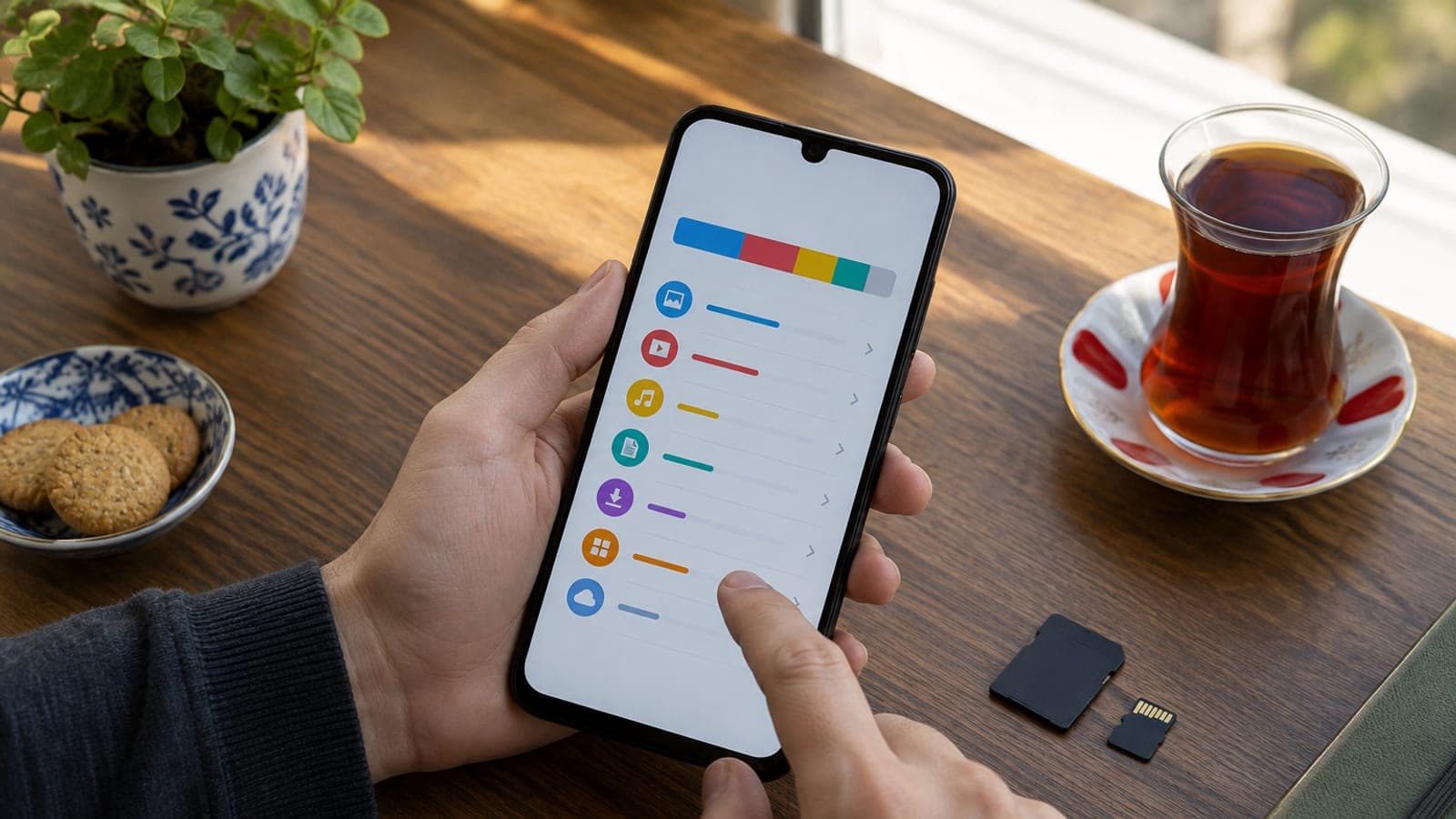
On Android go to Settings > Battery and device care > Storage (Samsung) or Settings > Storage. On iPhone open Settings > General > iPhone Storage and give the list under the coloured bar about 30 seconds to load. This shows you which app is really eating your space instead of leaving you to guess.
Clear out WhatsApp media
Open WhatsApp > Settings > Storage and data > Manage storage. Start with the videos under "Larger than 5 MB", then pick the three heaviest chats from the list and delete the media you no longer need with the trash icon. WhatsApp alone often holds 3-10 GB.
Back your photos up to the cloud
In Google Photos tap your profile picture, open Photos settings > Backup, choose the Wi-Fi only option and let it finish. On iPhone go to Settings > Apple Account > iCloud > Photos and turn on "Optimise iPhone Storage". Backing up 5,000 photos takes roughly one to two hours over Wi-Fi.
Remove the backed-up copies
Once the backup finishes, tap Google Photos > profile > Free up space on this device and confirm. This only removes files that already exist in the cloud, and it can clear 3-15 GB in one tap. Check that the backup shows 100% before you confirm.
Delete caches and downloads
From Settings > Apps open your biggest apps, such as Instagram, YouTube and Chrome, then tap Storage > Clear cache. Next open the Files app (My Files on Samsung) and empty the Downloads folder of APKs, PDFs and installers. Clearing a cache does not sign you out of anything.
Uninstall apps you never open
Sort the storage report from largest to smallest and remove anything you have not opened in the past three months. On iPhone, Settings > App Store > Offload Unused Apps deletes the app automatically while keeping its data. Games alone frequently take 1-4 GB each.
Empty the trash folders
In Gallery or Photos go to Albums > Recently Deleted / Trash and choose Delete all. Deleted files sit on the phone for 30 days, so the space you cleared will not show up until the bin is empty. Check the Google Photos trash separately too.
Confirm the result
Restart the phone, then return to the storage screen from step one and read the free space figure. Aim for at least 5 GB, which leaves comfortable room for updates and video recording. If the number is still low, go back to the second-largest app on the list.
Tips
Watch out
Always confirm the backup reads 100% before using "Free up space" or deleting in bulk. If the upload stopped halfway, those photos are gone permanently with no way to recover them. Also avoid unknown "cleaner" apps: they load ads and free almost nothing real. Stick to the built-in system settings.
Frequently asked questions
+Can I free up space without deleting my photos?
Yes. Once everything is backed up to Google Photos or iCloud, "Free up space on this device" or "Optimise iPhone Storage" removes the local copies while the originals stay in the cloud.
+Why is "System Data" so large on my iPhone?
It is mostly temporary caches and logs. Restarting the phone, clearing Safari history and reinstalling your biggest apps usually brings that section down by 2-5 GB.
+Will clearing the cache delete my data?
No. A cache is temporary files only, so your account, chats and settings stay put. The option to avoid is "Clear data" or "Delete storage", which does wipe everything.
+Which phones support a microSD card?
iPhones have no card slot at all. On Android, the Samsung A series, Xiaomi Redmi models and various mid-range phones do; check the box or the Settings > Storage screen.
+How much free space is enough?
At least 10% of total capacity, which in practice means 5-10 GB. That margin covers system updates, video recording and the temporary files the operating system creates.
Sources and verification
Published: September 13, 2026. tell us. Menu names follow the English-language Android and iOS interfaces; wording can differ slightly by manufacturer and OS version.
This content is for information only; for official procedures the relevant institution’s current announcements take precedence. Details: disclaimer.