How do you speed up a slow Windows PC in 10 minutes?
A short guide to reviving a sluggish Windows machine using startup apps, disk cleanup, power mode and tab discipline.
Short answer
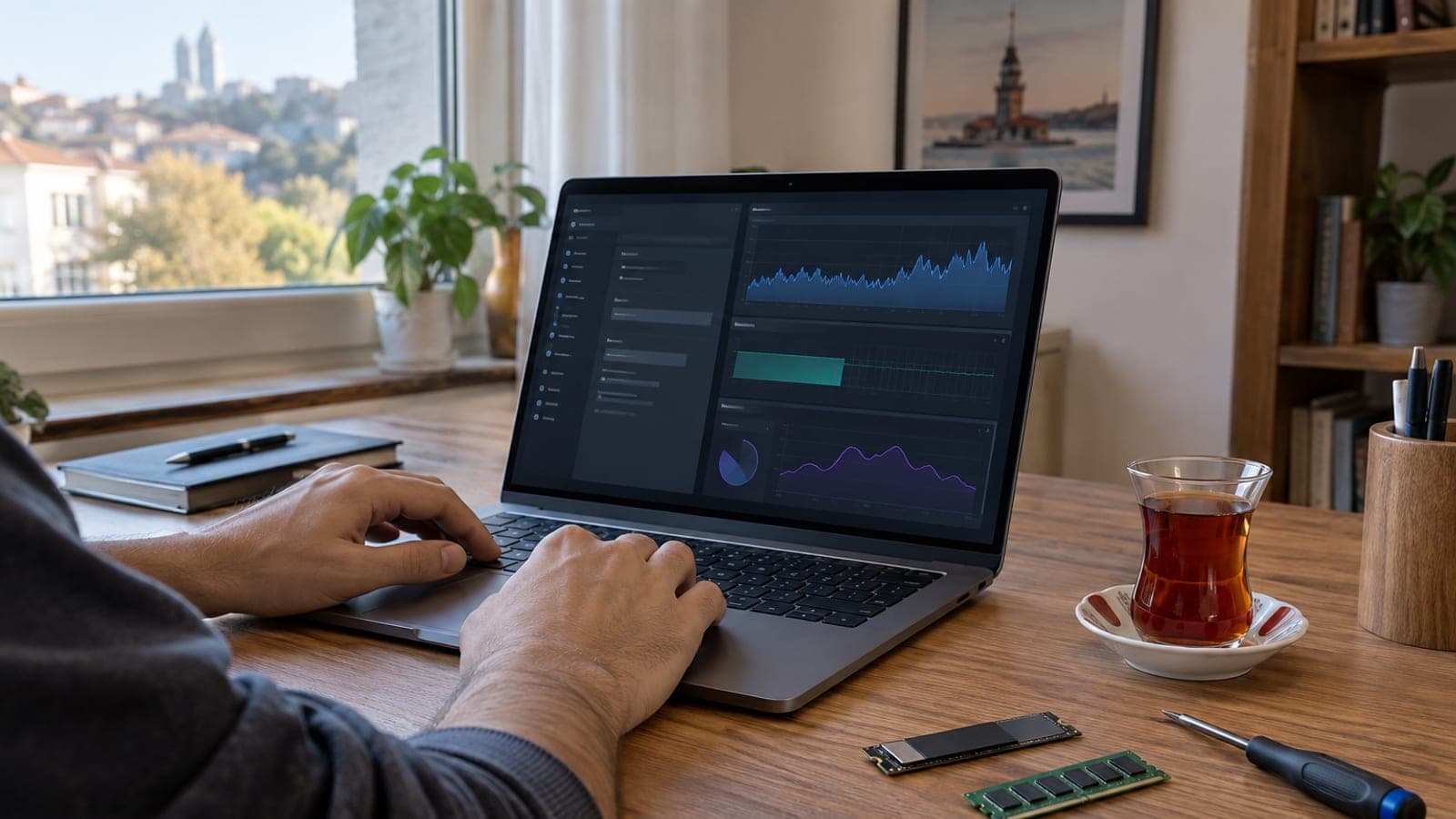
Disable unnecessary programs under Task Manager > Startup apps, delete old update and temporary files with Disk Cleanup, set the power mode to Best performance under Settings > System > Power & battery, and keep open browser tabs under 10. If it is still slow, move from an HDD to an SSD and upgrade to 16 GB of RAM.
What you need
Step by step
Clean up startup apps
Right-click the Start button, open Task Manager, then switch to the Startup apps tab in the left panel. Click the Status column to bring the enabled entries to the top, then right-click anything marked High or Medium under Startup impact and choose Disable. Every installer adds itself to this list, and the ones you do not use burn RAM and CPU at every boot.
Delete junk files with Disk Cleanup
Type "Disk Cleanup" in Start and open it, select the C: drive, then press Clean up system files. Tick Windows Update cleanup, temporary internet files, antivirus definitions and Recycle Bin, then confirm. Windows needs at least 15 percent free space on the installation drive to run comfortably.
Switch Storage Sense to automatic
Go to Settings > System > Storage, turn on Storage Sense and enable automatic deletion of temporary files. That way you do not have to clean up by hand every month. If space is still tight, use a tool like TreeSize to see which folder is filling the disk and review the large files.
Set the power mode to performance
Open Settings > System > Power & battery, expand the Power mode row and set Plugged in to Best performance. On a laptop, choose the same for On battery if you are willing to trade some runtime. The default Balanced and Best power efficiency modes throttle processor speed and slow the system down.
Lower the Energy Saver threshold
On the same screen, open the Energy Saver settings. By default it kicks in when the battery drops to 30 percent and limits performance. Dropping the threshold to 20 or 10 percent keeps the machine at full performance for longer.
Get your browser tabs under control
Aim to keep fewer than 10 tabs open, since each one eats a serious amount of RAM. Save whatever you want to read later as a collection with an extension like Session Buddy, or paste the link into the Sticky Notes app. At the end of each work session, review your tabs and close the ones you are done with.
Check for a hardware bottleneck
If disk usage sits near 100 percent in Task Manager > Performance, your main drive is probably an old HDD, and moving to an NVMe or SATA SSD gives the biggest speed gain. If RAM is constantly full, going to 16 GB makes heavy multi-tab use comfortable. Before upgrading, look up your device model on the manufacturer's site to confirm the back panel opens and a free slot exists.
Tips
Watch out
Do not disable entries such as your antivirus, audio software, touchpad driver or OneDrive in the startup list; turning them off can break sound, the touchpad or file sync. If you tick the "Previous Windows installations" box in Disk Cleanup, you permanently lose the option to roll back to the older version.
Frequently asked questions
+Does disabling startup apps delete the programs?
No. The program stays on the computer, it simply does not launch itself at boot. You can still open it normally from the Start menu whenever you need it.
+How much does Best performance mode affect battery life?
If you select this mode on battery, runtime drops noticeably and the device runs hotter. Performance while plugged in and balanced on battery is a good middle ground.
+How much RAM is enough?
16 GB is the current standard for both desktops and laptops. 8 GB struggles with heavy multi-tab browsing, and adding an 8 GB module is a relatively cheap upgrade whose effect you notice right away.
+Do I need to reinstall Windows when fitting an SSD?
Not necessarily; cloning software can move your existing installation. But if the system has been running for years, a clean install gives a tidier result.
+Do I need to download cleaning software?
No. Windows' own Disk Cleanup and Storage Sense tools do the job. Third-party "booster" programs often come bundled with adware.
Sources and verification
Official pages for this process
Published: September 12, 2026. tell us. Menu names follow the English Windows 10/11 interface; on a Turkish install the equivalents are Görev Yöneticisi, Disk Temizleme, Depolama Duyarlılığı and Güç ve pil.
This content is for information only; for official procedures the relevant institution’s current announcements take precedence. Details: disclaimer.