How do you use a Chromebook as your travel computer?
Treat a Chromebook as a light, long-lasting travel machine and leave the heavy work for the computer at home.
Short answer
Reserve the Chromebook for writing, email, spreadsheets and meetings. Before you leave, turn on offline access in Google Docs and Drive, sync the files you need, and install the apps you want from the Play Store. If you need image editing, video work or specialised desktop software, line up a web-based alternative or bring your main computer instead.
What you need
Step by step
List the work you will actually do
Write down the tasks you expect to handle on the road. Writing, email, spreadsheets, slides and video calls all run comfortably on a Chromebook. If Photoshop, video editing, CAD, macro-heavy Excel files or in-house desktop software are on the list, the Chromebook will not cover it alone.
Turn on offline mode before you leave
In Google Docs open Settings > Offline, and in Drive right-click a file and switch on "Available offline". This is the only way to work on a plane or anywhere without a connection. You cannot set it up mid-trip, because that first sync needs internet.
Download files and apps in advance
Pull the PDFs, decks and photos you need from Drive down to the device. Install the Android versions of apps like Notion, WhatsApp or Spotify from the Play Store and open each one once, since the first launch asks for sign-in and downloads data.
Set up a fallback for heavy tasks
For cropping and resizing images, try web tools like Photopea or Canva. For code or custom software, set up the Linux environment (Settings > Developers > Linux development environment) or Chrome Remote Desktop and test it before you travel. Trying any of this for the first time on the road is the worst case.
Tune the settings for battery life
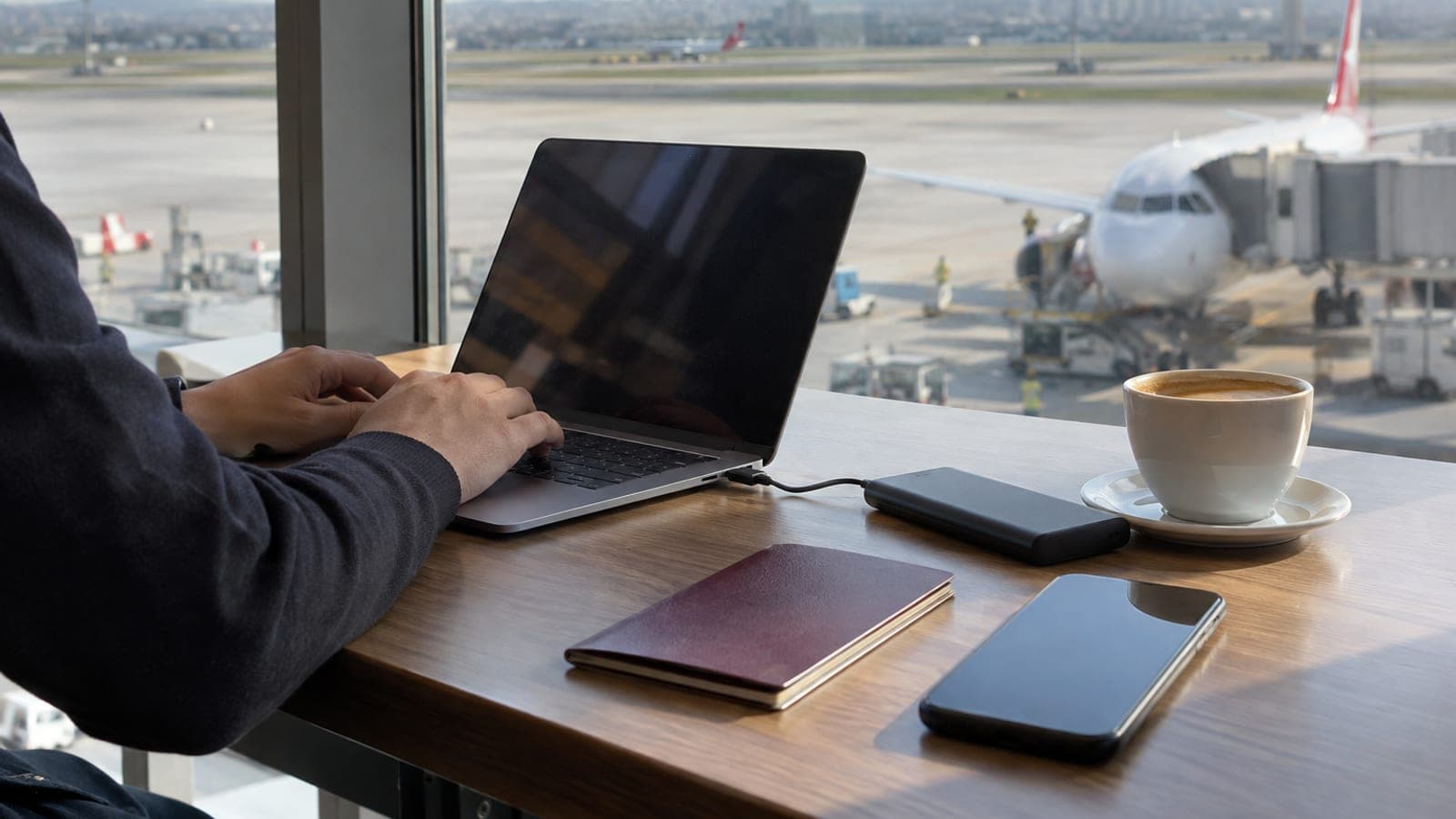
Drop the screen to medium brightness and close tabs you are not using. Most Chromebooks get through a working day on one charge, which is what lets you work in cafes without outlets and in transit lounges. Pack a USB-C power bank and you may not even need to unpack the charger.
Collect the files on your main computer afterwards
Once you are back, anything in Drive is already on your main machine. Move the local files sitting in the Downloads folder into Drive as well. Finish heavy editing, rendering and archiving there.
Tips
Watch out
Leaving home without enabling offline mode is the most common mistake. With no connection you cannot reach your documents and some apps will not even open. And if you turn out to need a corporate application that ChromeOS cannot run, there is almost no way to fix it while traveling, so confirm the requirements of the job in advance.
Frequently asked questions
+Can a Chromebook replace your main computer?
For most people, no. It handles writing, browser work and office documents well, but falls short for heavy image editing, video work and specialised desktop software.
+Can I use Office on a Chromebook?
You can use the web version of Microsoft 365 in the browser. Desktop Office will not install, and complex Excel files with macros may not behave correctly.
+Is a Chromebook useful somewhere with no internet?
Yes, with one condition: you have to enable offline access in Google Docs, Drive and Gmail before the trip. Setting it up later requires a connection.
+Does the battery really last a full working day?
With writing, email and light browsing, most models make it through a working day on one charge. Video playback and dozens of tabs cut that noticeably.
+Is buying a Chromebook a sensible choice?
The price-to-weight balance is good, but model choice and service coverage can be thin depending on where you are. Compare a light Windows ultrabook or a tablet with a keyboard too.
Sources and verification
Official pages for this process
Published: September 13, 2026. tell us. Market availability and service notes were generalised, since the source guide was written for Turkey.
This content is for information only; for official procedures the relevant institution’s current announcements take precedence. Details: disclaimer.