How do you set up a robot vacuum correctly on first use?
A step-by-step guide to unboxing a robot vacuum and getting mapping, virtual walls and suction settings right the first time.
Short answer
Place the dock against a wall with 50 cm clear on each side and 1.5 m in front, then plug it in. Seat the robot on it and charge for about 3 hours until the light turns solid. Install the brand app, join a 2.4 GHz Wi-Fi network, clear cables off the floor, and run "Mapping" or "Exploration Run" first. Once the map appears, name the rooms and draw no-go zones.
What you need
Step by step
Remove the shipping protection
Take off the foam pads on the bumper, the cardboard lock on the side brush and the tape inside the dust bin. Release the two orange latches on the main brush, pull it out and reseat it fully. Any tape left on the bumper makes the robot behave as if it is permanently pressed against something and reverse constantly.
Position the charging dock
Put the dock on a flat hard floor flush against a wall, leaving at least 50 cm clear on both sides and 1.5 m in front. Avoid carpet edges, the top of stairs, the space under radiators and spots in direct sunlight. Wind excess cable into the channel on the back of the dock so no loop is left on the floor.
Charge for three hours
Hold the side power button for 3 seconds to switch the robot on, then seat it on the dock so the charging contacts touch the metal pins. Wait until the indicator glows solid white or green, which takes 3 to 6 hours on most models. Starting setup with a full battery keeps the first mapping run from being cut short.
Install the app and join Wi-Fi
Download the brand app from the App Store or Google Play, create an account and pick your country. Tap "Add Device" or the "+" icon, then hold the Home and Spot buttons on the robot together for 3 seconds to enter pairing mode. Your phone must be on the 2.4 GHz network, since pairing fails on 5 GHz.
Clear the floor
Pick up charging cables, phone cables, socks, rug tassels and pet food bowls. If a doorway threshold is taller than 2 cm, you may need to lift the robot into that room by hand. This tidy-up takes about 10 minutes but is what makes the map come out accurate.
Run the mapping pass
Start "Mapping", "Exploration Run" or "Fast Mapping" in the app; the robot only drives around without vacuuming and needs 15 to 25 minutes for a 100 m² home. Keep every door open, do not walk behind the robot and leave curtains lifted. When it finishes, the robot returns to the dock and the map is saved.
Edit the map
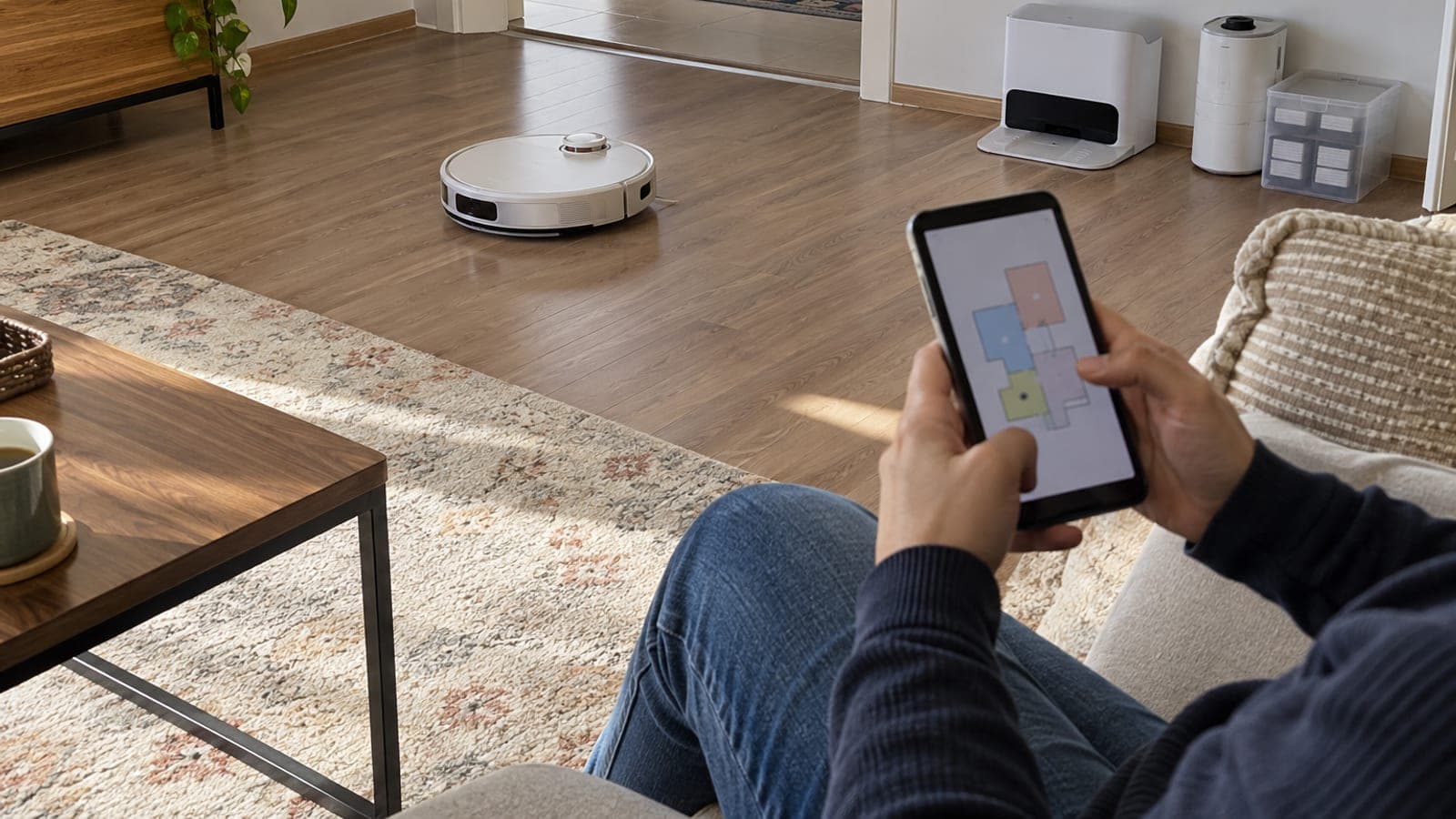
Open "Edit Map", check the room divisions and fix them with "Split Room" or "Merge Rooms", then label them Living Room, Kitchen, Bedroom and so on. Use "Virtual Wall" along the edge of the stairs and "No-Go Zone" around cable bundles, pet bowls and breakables. If you use the mop, mark rugs as a "Mop No-Go Zone".
Set suction, schedule and maintenance
Choose "Standard" suction on hard floors and "Turbo" on carpet, and set the mop water level to "Low" on laminate. In the schedule, pick a daily time when you are out (for example 10:00 on weekdays) and set "Do Not Disturb" to 22:00-08:00. Check the filter and brush counters under "Maintenance": replace the filter every 2 months and the side brush every 6.
Tips
Watch out
Never leave the robot docked with a filled mop module attached; leaking water swells wood flooring and oxidizes the charging pins. When cleaning is done, remove and wash the pad and empty the tank. Also avoid starting the first mapping run while a pet litter tray is open, since the robot can spread the mess through the whole house.
Frequently asked questions
+My robot vacuum will not connect to 5 GHz Wi-Fi, what should I do?
Almost every robot vacuum on the market supports 2.4 GHz only. Give the 5 GHz network a different name in your router settings or turn it off during setup, connect your phone to the 2.4 GHz network and retry pairing.
+Should the robot vacuum while doing its first mapping run?
No. A mapping-only run finishes faster and produces a cleaner map. If your model has no such option, let one normal cleaning cycle finish without interruption.
+Why does my robot fail to return to its dock?
Usually there is less than 1.5 m of clearance in front of the dock, the dock is sitting on carpet, or the contact pins are dusty. Move the dock onto hard floor against a wall, wipe the pins with a dry cloth, seat the robot by hand and save the map again.
+How large an area can it clean on one charge?
Models with roughly 5,000 mAh batteries cover 100 to 150 m² on standard suction in a single charge. In larger homes the robot returns to charge and resumes from where it stopped.
+Do I need to keep the box for the warranty?
No law requires the original box; the invoice and warranty certificate are enough. Keeping it for the first year is still sensible, since it reduces shipping damage if the unit goes to service.
Sources and verification
Published: September 14, 2026. tell us. Adapted from a Turkish source; brand app names and warranty practice reflect the Turkish market.
This content is for information only; for official procedures the relevant institution’s current announcements take precedence. Details: disclaimer.