How do I install an app on a smart TV and cast from my phone?
Install an app from your TV's own store and push phone video to the big screen in about 15 minutes, without help.
Short answer
Connect the TV to Wi-Fi, open the store from the Home screen (Google Play Store, Samsung Apps or LG Content Store), search the app and press Install. Then put your phone on the same Wi-Fi network, tap the cast icon inside the app and pick your TV's name from the list. Installing takes 3-5 minutes; pairing the cast takes about a minute.
What you need
Step by step
Identify the TV's operating system
On the remote go to Settings > System > About, or on Samsung to Settings > Support > About This TV, and read the software name. Android TV/Google TV, Tizen and webOS each use a different store, so this screen decides which store you open. Note the model number too; it helps if you need support later.
Connect the TV to Wi-Fi
Open Settings > Network & Internet > Wireless, pick your home network and type the password. The phone and the TV must sit on the same network, so if your router broadcasts 2.4 GHz and 5 GHz under separate names, connect both devices to the same name. After connecting, the Network Status line should read Connected.
Install the app from the store
Go back to Home, open the Apps tab and enter the store: Google Play Store on Google TV, Apps on Samsung, LG Content Store on LG. Type the app name in the search box and press Install. It usually takes 1-3 minutes, and an Open button appears when it finishes.
Sign in inside the app
Open the app and take the code shown on the Sign In screen, then enter it at the listed address in your phone's browser. That is far faster than typing a password with the remote. Codes are normally valid for 5-10 minutes; press Get New Code if yours expires. A profile picker appears once you are in.
Tap the cast icon on your phone
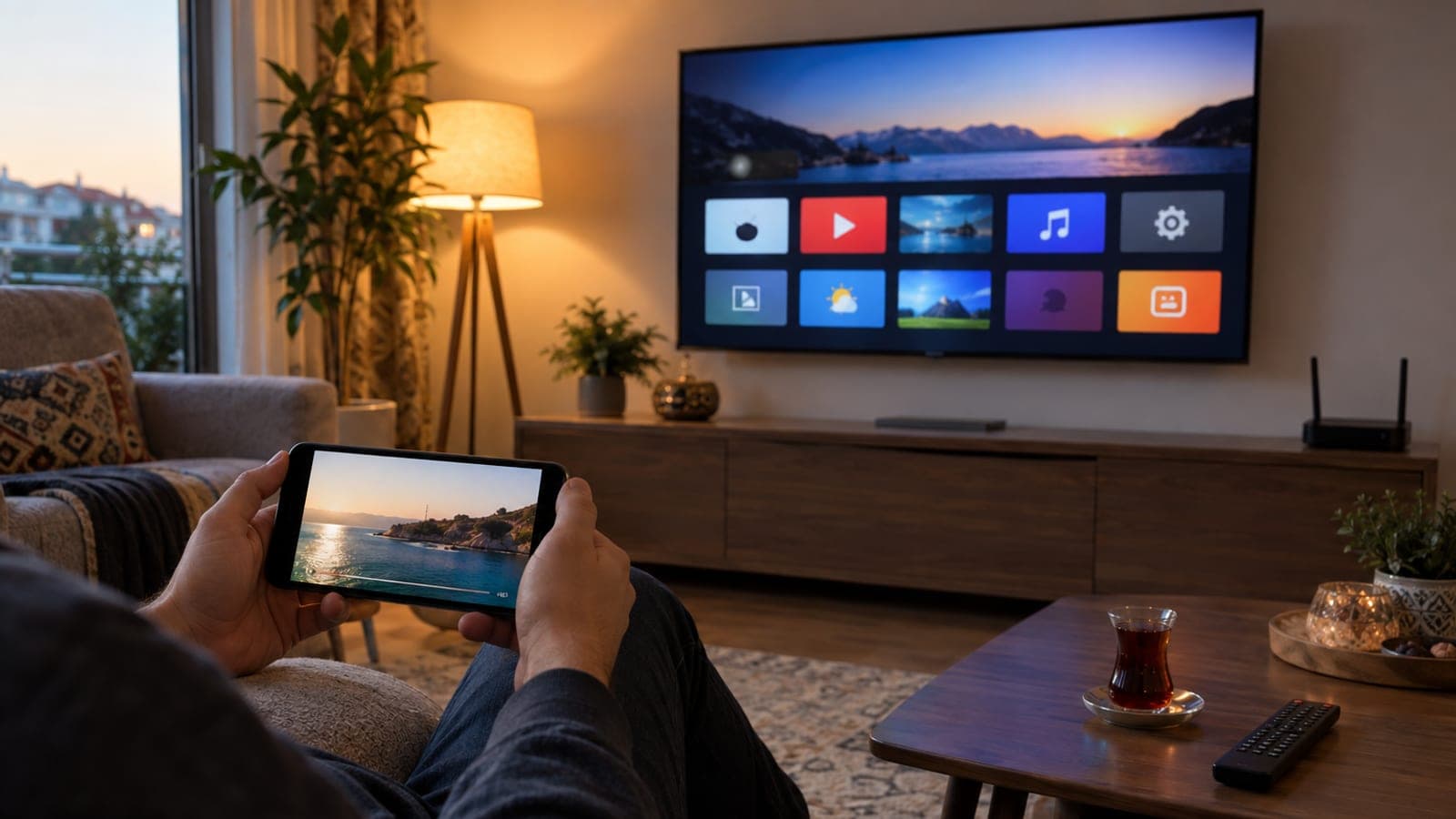
Put the phone on the same Wi-Fi as the TV, open the video and tap the cast icon at the top right: a rectangle with waves on Android, the AirPlay triangle on iPhone. Pick your TV's name from the list and the picture moves over within 5-10 seconds. Volume and play/pause stay on the phone.
Turn on mirroring for the whole screen
If the app has no cast support, send the entire screen instead: Cast or Screen Cast in the Android notification panel, Smart View on Samsung phones, Control Center > Screen Mirroring on iPhone. On the TV side, Samsung needs Settings > Connection > Screen Mirroring and LG needs the Screen Share app open. A 0.3-1 second delay is normal while mirroring.
Fix the network and firmware if it stutters
If the picture freezes, move the phone to the 5 GHz network, keep the TV within 5 metres of the router and switch off AP Isolation or Guest Network in the router settings. Then update the TV from Settings > System > Software Update, unplug it and wait 30 seconds. These three moves solve most cases.
Tips
Watch out
Do not enable the "allow unknown sources" setting to sideload APK files downloaded from the web onto your TV. Those files can carry adware and password-stealing code, they put your warranty in a grey area, and apps offering pirated content are copyright infringement. Install apps only from the TV's official store.
Frequently asked questions
+The phone and TV are on the same Wi-Fi, but the TV is not in the list. What now?
Turn off Guest Network and AP Isolation on the router, and set the phone to the same band the TV uses instead of forcing 5 GHz. Then unplug the TV for 30 seconds and try again.
+Can I install apps on a TV that is not smart?
Not directly. Plug a Google TV, Fire TV Stick or Android TV box into an HDMI port to make the TV smart, then install the apps on that device.
+Can I cast from an iPhone to a Samsung or LG TV?
Samsung and LG models from 2019 onward support AirPlay 2. Choose the TV under Control Center > Screen Mirroring and type the four-digit code shown on screen the first time.
+Can I use my phone while it is casting?
Yes with in-app casting, because the TV streams the video itself and the phone only acts as a remote. With screen mirroring everything on the phone appears on the TV, so doing anything else interrupts the stream.
+The TV says storage is full. How do I free up space?
Open Settings > Apps and press Uninstall on apps you no longer use, or use each app's Clear Cache option. Freeing 1-2 GB is usually enough.
Sources and verification
Published: September 14, 2026. tell us. Menu wording follows English-language TV firmware; exact labels vary slightly by brand and software version.
This content is for information only; for official procedures the relevant institution’s current announcements take precedence. Details: disclaimer.