How do you set up automatic bill payment instructions?
Steps for linking your electricity, water, gas and phone bills to an automatic payment instruction in your banking app.
Short answer
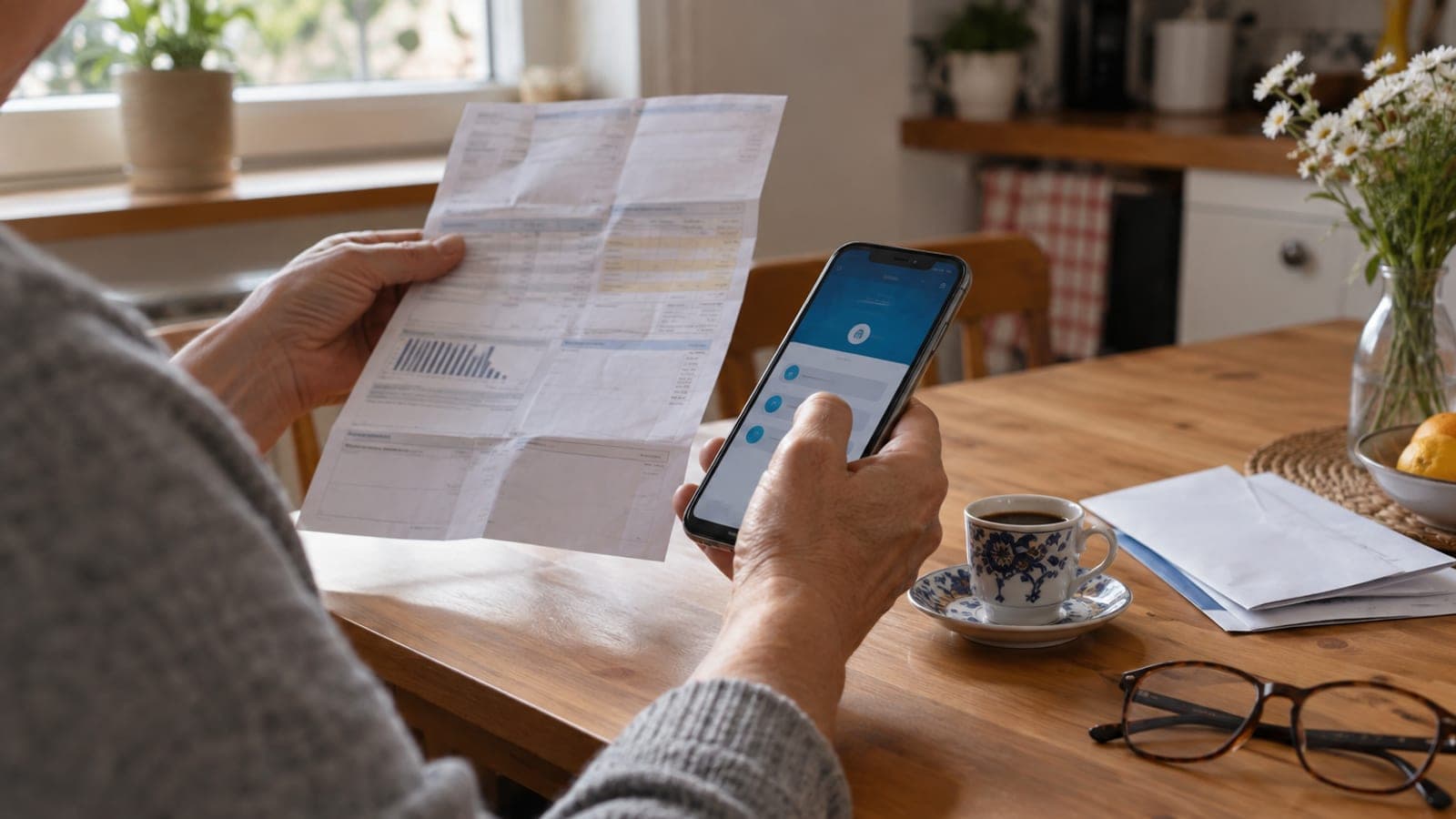
In your bank's mobile app open the Payments section, go to Automatic Payment Instructions under Bill Payment, choose the utility company, enter the subscriber or installation number printed on the bill, select the account or credit card the money will come from, and confirm the instruction. Then check next period's bill to confirm the utility activated it.
What you need
Step by step
Find the subscriber number on your bill
Look at the top of the paper bill or the e-bill PDF for the number labelled Subscriber No, Installation No, Contract Account No or Customer No. The bank uses this number to connect to the utility's system, so a wrong entry means no bill is ever collected even if the instruction opens. Gas and electricity usually want the installation number; telecom wants the line or customer number.
Open the Payments menu in your banking app
Log in to mobile banking and tap Payments from the bottom menu or the home screen. Under the Bill Payment heading you will find a screen called Automatic Payment Instructions or My Instructions. In internet banking the same path is usually Payments > Bill Payments > Automatic Payment Instruction.
Select the utility and bill type
Tap New Instruction or Add Instruction. Choose the bill type (Electricity, Water, Gas, Phone/Internet, TV), then find your provider in the list. Check the name of your regional distribution company on the bill before selecting, because several similarly named companies can be listed for the same province.
Enter the subscriber number and verify the account
Type the subscriber or installation number from the bill into the requested field and press Query or Continue. The bank connects to the utility and displays the subscription holder's name plus any open bill. Confirm that the name and address shown match your own subscription.
Choose the account or card to be charged
Under Account To Be Debited pick your current account, or choose your card under the Credit Card option. Some banks offer an Upper Limit or Maximum Amount To Be Paid field; if you set a cap, bills above it will not be paid automatically. Leave the field empty or select the no-limit option if you do not want a cap.
Confirm the instruction and keep the record
Read the summarised utility, subscriber number and account details one last time, then press Confirm. Enter the SMS verification code to complete it, and save or screenshot the result screen showing the instruction number. That record helps if you ever need to raise the issue with your bank.
Verify the instruction is active next period
Most instructions take effect only after the utility approves them, so the current bill may still need paying by hand. Return to the Automatic Payment Instructions screen and check the status reads Active. Next period, look for the collection in your account activity; if it is missing, call the utility's customer service and ask about the instruction record.
Set it up through the utility if needed
Some electricity, water and gas companies register autopay only in their own customer portal, under Automatic Payment or Regular Payment Instruction. If your provider is not in the bank's list, use the utility's online service centre or apply at a subscriber office with your ID. In that case your only job at the bank is keeping enough balance in the account.
Tips
Watch out
Do not stop tracking your bills just because an instruction exists. If the account balance is short or the utility has not approved the instruction yet, the bill goes unpaid and you risk late interest and disconnection. The most common mistake is leaving that period's bill unpaid while waiting for the instruction to activate.
Frequently asked questions
+Will the bill be paid automatically in the month I set up the instruction?
Usually no. The instruction takes effect after the utility approves it, so you may need to pay that period's bill yourself. Check on screen which period the instruction starts from.
+What happens if there is no money in my account?
The bill is not paid and the debt stays overdue with the utility. Banks often retry a few times, but you should pay the bill yourself to avoid late interest and the risk of disconnection.
+How do I cancel an automatic payment instruction?
In mobile banking go to Payments > Automatic Payment Instructions, select the instruction and press Cancel Instruction or Delete. If the utility holds a separate record, cancel it in their portal as well.
+If I link the instruction to my credit card, can the bill be paid in installments?
A standard instruction charges the full bill to the card in one go. Some banks offer campaign installments on bill payments, shown as a separate option on the instruction screen.
+What happens if I enter the wrong subscriber number?
The bank cannot reach the utility at the query step and usually returns an error. Even if the system accepts it, payment could go to the wrong subscription, so always check the name and address returned by the query.
Sources and verification
Published: September 12, 2026. tell us. Menu names reflect Turkish banking apps and utility providers; wording varies by bank.
This content is for information only; for official procedures the relevant institution’s current announcements take precedence. Details: disclaimer.