How do you pick the right microSD card for Nintendo Switch 2?
Switch 2 installs games only on microSD Express cards, so here is how to balance capacity, speed and price.
Short answer
To store games on a Switch 2 the box must say "microSD Express" and carry the EX logo. A UHS-I card from your old Switch will still mount, but it only holds screenshots and clips, not game installs. Pick 256 GB for everyday use, 128 GB on a tight budget, or 1 TB for a large digital library; all of them read in the 800-900 MB/s range.
What you need
Step by step
Confirm the EX logo
Look for the words "microSD Express" plus the EX symbol on the card itself or the packaging. A card that only lists U3, V30 or A2 is not Express, and Switch 2 will refuse to install games on it. On shopping pages, scan the specification table for the word "Express" before you buy.
Match capacity to your library
If you mostly play physical cartridges, 128 GB is enough, since cartridges still copy part of their data to the console. If you buy mainly digital, 256 GB roughly doubles the console's own storage. If you want to keep several big releases installed without deleting anything, move up to 1 TB.
Compare read and write speeds
Express cards read at around 800-900 MB/s, roughly four times what UHS-I cards managed on the original Switch. Write speeds vary more, landing between 600 and 750 MB/s. When two cards cost about the same, take the faster writer: downloads and game installs finish noticeably sooner.
Buy from a trustworthy seller
microSD Express is still a new standard and mislabeled cards are common. Stick with known brands such as Samsung, SanDisk, Lexar or PNY, bought from an official store or authorized retailer. Keep the receipt; the warranty matters over the life of a card.
Insert the card and format it on the console
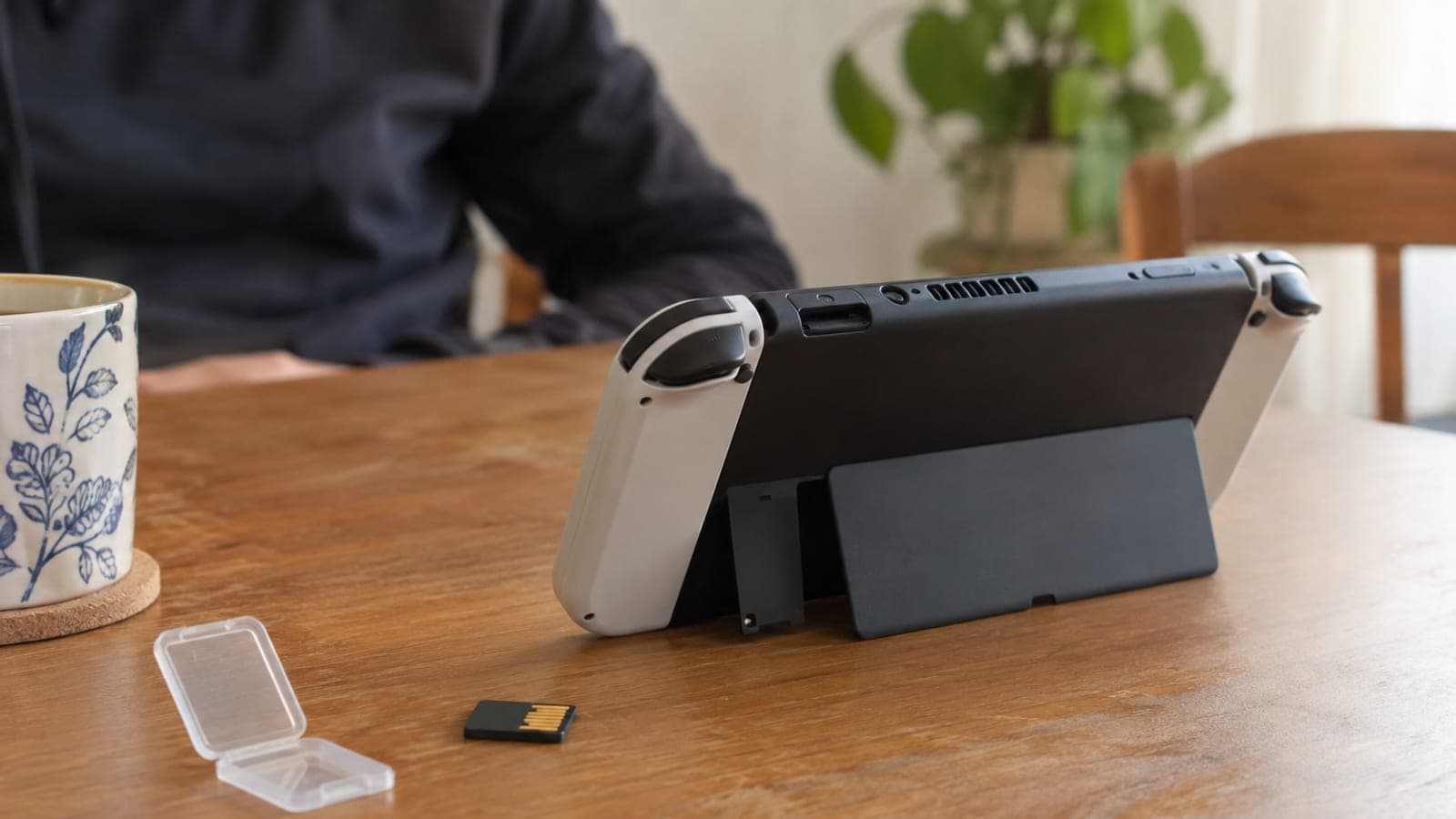
Power the console down completely, open the rear stand and press the card into the slot until it clicks. On the next boot Switch 2 detects the card and offers to format it, so accept the prompt. Formatting erases whatever was on the card, so back up any existing files first.
Set the card as your download target
Open System Settings > Data Management and set software to install to the microSD card. You can also move games already sitting in internal storage over to the card from the same screen. That keeps the built-in storage free for system updates and save data.
Tips
Watch out
Switch 2 will not install games on ordinary microSD cards. If the box lacks "Express" and the EX logo, the console still sees the card but limits it to screenshots and clips. Be equally wary of very cheap, no-name cards labeled "Express": counterfeits fail to deliver the stated capacity or speed and can cause mid-game freezes and data loss.
Frequently asked questions
+Can I use the microSD card from my old Switch in a Switch 2?
You can insert it, but you cannot install games on it. Standard UHS-I cards only work on Switch 2 for storing screenshots and video clips.
+Is 128 GB enough for a Switch 2?
It is fine if you mostly play physical cartridges. If you buy large digital titles, 256 GB or more will be far more comfortable.
+Why are microSD Express cards so expensive?
The Express standard uses a PCIe/NVMe interface and only a handful of manufacturers ship these cards so far. Prices are expected to fall as supply grows.
+Can I move my existing games after installing the card?
Yes. Go to System Settings > Data Management and transfer software from internal storage to the microSD card.
+Where can I buy these cards?
Major electronics retailers, authorized Nintendo sellers and large online marketplaces stock them. Always confirm the phrase "microSD Express" in the product description.
Sources and verification
Published: September 11, 2026. tell us. Availability of microSD Express cards varies by market; in Turkey stock can be intermittent, so factor import duties and shipping into any cross-border purchase.
This content is for information only; for official procedures the relevant institution’s current announcements take precedence. Details: disclaimer.