How do you install a system update on a Google TV device?
Manually check for and install the newest Android build on your Google TV box or stick, then clear up the oddities that follow.
Short answer
From the home screen, select your profile icon in the top right corner, open Settings, then go to System > About > System update and press "Check for updates". If one is available, download and install it and let the device restart on its own. Do not unplug it during the process, and expect the first boot afterward to take a few minutes.
What you need
Step by step
Keep the device powered and online
An update can run to several hundred megabytes, so the Wi-Fi connection needs to stay stable throughout. If you have a stick model, plug it into the wall adapter instead of the TV's USB port, because that port can cut power when the TV turns off and leave the update half finished.
Open the Settings menu
On the home screen, use the remote to move to the profile icon in the top right corner and choose "Settings". On some interfaces the gear button on the remote, or a long press on the home button, opens the same menu.
Check for a system update
Inside Settings, follow the path "System" > "About" > "System update". On the screen that appears, press the "Check for updates" button. If a newer build exists, the download starts by itself.
Finish the install and restart
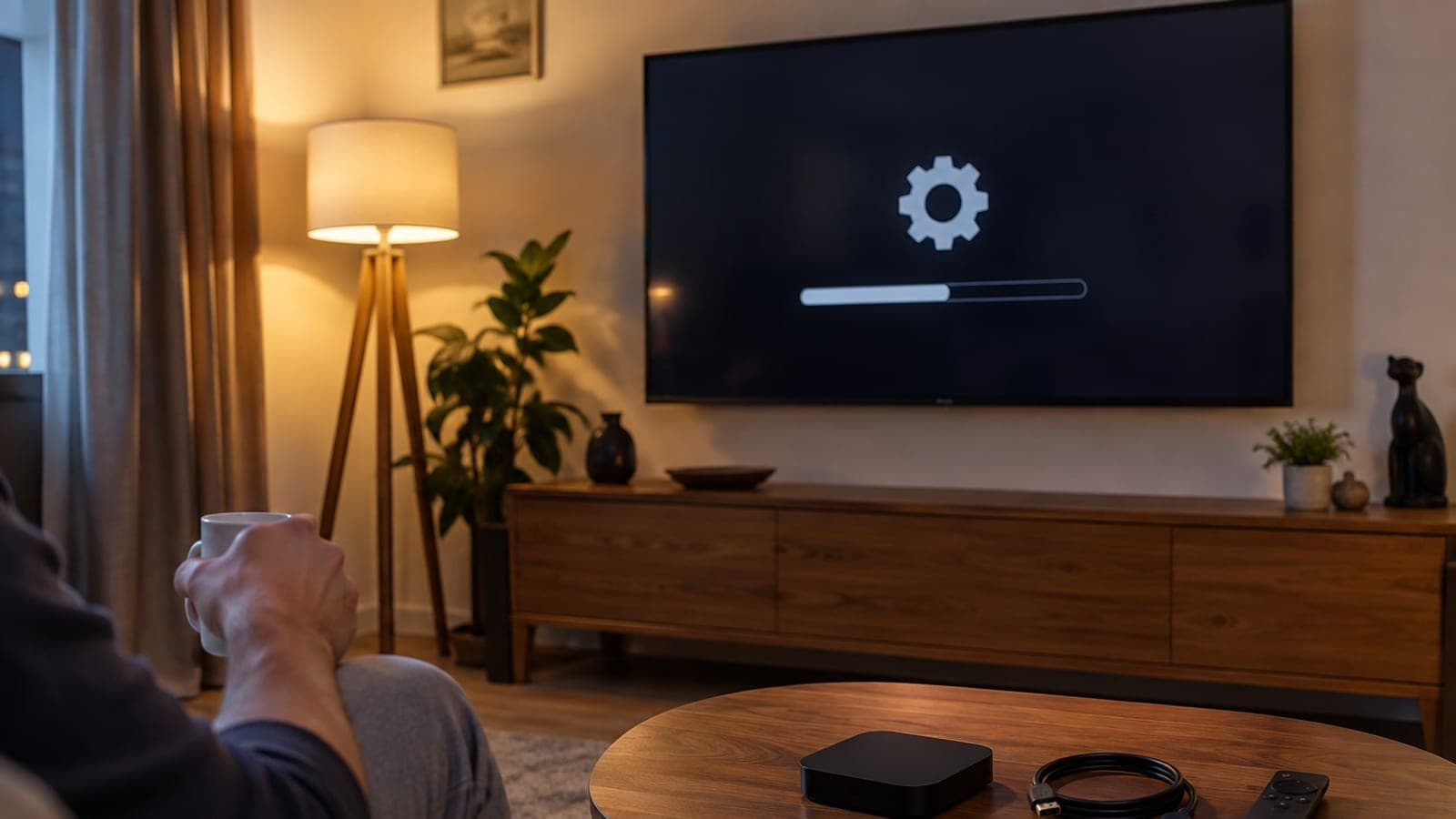
When the download completes, confirm "Restart now". As the device powers down and back up, you will see the Android robot or a progress bar on screen. Do not pull the plug at this stage, or the device may fail to boot.
Verify the new version
After it restarts, return to "Settings > System > About". Look at the "Android version" and "Security patch level" lines; if the numbers have moved up, the update landed correctly.
Clear the cache first if things feel slow
If menus stutter after the update, go to "Settings > Apps", pick the app that is hanging, and press "Clear cache". This step resolves most post-update weirdness, so a factory reset is usually unnecessary.
Factory reset only as a last resort
If clearing the cache is not enough, use "Settings > System > About > Factory reset". This wipes every app and account sign-in, so you will need to set the device up from scratch afterward.
Tips
Watch out
Unplugging the device or losing power mid-install can leave the box unable to boot, so leave it alone until the process finishes. A factory reset is also irreversible: all apps, settings, and account sign-ins are erased.
Frequently asked questions
+Nothing on screen looks different after the update. Did it fail?
No. These updates usually leave the interface alone and deliver bug fixes, speed improvements, and security patches instead. Check the version number under Settings > System > About to confirm.
+My Google TV device never finds an update. What should I do?
Restart the device and try again. Updates ship in stages, so your model may simply not be in the current wave; checking every few days is normally enough.
+How long does the update take and how much data does it use?
The download is usually a few hundred megabytes, and the install plus restart takes about 10 to 15 minutes in total. If you are tethering from mobile data, watch your allowance.
+Can I back things up before a factory reset?
The device has no built-in backup, but because apps are tied to your Google account you can sign in again afterward and reinstall most of them. Note down your in-app passwords separately.
+Will an older Google TV device ever get a new Android version?
That depends on the manufacturer. Models past their support window get security patches only, not major version jumps. Check the support status on the manufacturer's site.
Sources and verification
Published: September 11, 2026. tell us. Menu names follow the English-language Google TV interface; labels may differ slightly by device model and firmware.
This content is for information only; for official procedures the relevant institution’s current announcements take precedence. Details: disclaimer.