How do you transfer Switch data to Switch 2?
Save files, user profiles, screenshots and digital games all move from the old Switch to the new Switch 2 in a single pass.
Short answer
Power on the Switch 2, install the update, and pick "Begin System Transfer" on the screen that follows. On the old Switch go to System Settings > System > System Transfer to Nintendo Switch 2, place both consoles side by side on the same Wi-Fi network, and leave them alone until the transfer finishes.
What you need
Step by step
Update and tidy the old Switch
On the old console open System Settings > System > System Update, since the transfer menu only appears on current firmware. The transfer is all-or-nothing, so delete demos and games you no longer want now instead of cleaning up on the new console later.
Run the Switch 2 initial setup
Turn on the new console, choose your language and region, and connect it to the internet. Install the newest firmware when prompted; after the restart the transfer prompt appears on screen. Do not skip past it, because there is no way to relaunch the wizard from the menus.
Choose "Begin System Transfer"
Select "Begin System Transfer" on the transfer screen. Insert your microSD Express card if you have one; without it, the data from the old card is copied into the Switch 2 internal storage. Then sign in with the same Nintendo Account you used on the old console.
Set both consoles side by side
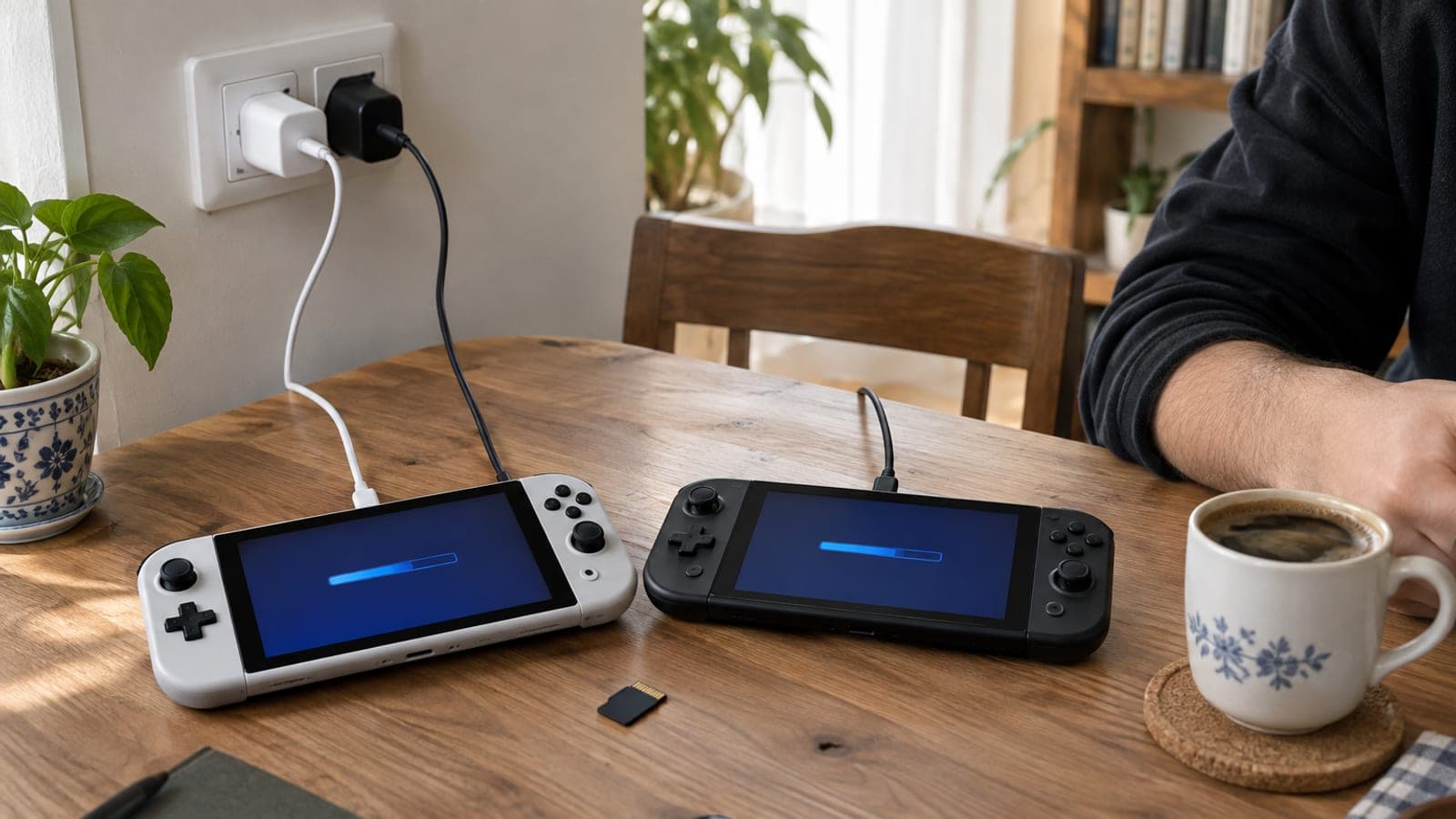
The transfer runs wirelessly over Wi-Fi, so keep both consoles close to each other and to the router. Plug both into power with their USB-C adapters, because a drained battery can cut the transfer off halfway.
Open the transfer menu on the old Switch
On the old console go to System Settings > System > System Transfer to Nintendo Switch 2. Move through the screens with "Next" and "Done", read the warning text, then press "Next" again. Confirm the notice about saves that can only live on one console.
Start receiving and wait it out
Tap "Start Receiving Data" on the Switch 2 and a percentage and progress bar appear. Neither console can be used while this runs, so just let it work. When it ends you get a notice that your old theme was applied, and the Home button closes out setup.
Stop unwanted games from downloading
Digital games download one by one in the background after the transfer. Highlight a game you do not want in your library, press "+", then use Data Management > Delete Software. You can also leave the icon in place and pull the game down later through Virtual Game Cards.
Tips
Watch out
If you skip the transfer during initial setup, there is no way to run the system transfer wizard afterwards; your only route is wiping the Switch 2 through System Settings > System > Formatting Options > Restore Factory Settings and starting over. Also, saves for some Nintendo first-party games can only exist on one console, so they are removed from the old Switch after the transfer.
Frequently asked questions
+Does the old Switch become unusable after the transfer?
No. The old console is not factory reset and keeps working normally. Only the save files that can exist in one place at a time are removed from it.
+Can I pick and choose which data gets transferred?
You cannot; the transfer is all-or-nothing. The cleanest approach is deleting games and demos you do not want from the old Switch before you start.
+Do my digital games come across with the transfer?
The game icons show up right away, but the files download in the background once the transfer ends. That means you need to keep the console online for the first day.
+Do I need the same Nintendo Account region on both consoles?
Yes, both consoles must use the same Nintendo Account, and you should run the transfer without changing the account's country setting, or your digital games will not download.
+Can I transfer without buying a microSD Express card?
Yes. Without a card inserted, the data from your old memory card is copied into the Switch 2 internal storage, which is fine if you have enough free space.
Sources and verification
Published: September 11, 2026. tell us. Menu names are given in English as they appear on consoles set to English; on a Turkish-language console the paths are in the same order under System Settings.
This content is for information only; for official procedures the relevant institution’s current announcements take precedence. Details: disclaimer.