How do you set up a Nintendo Switch 2?
What to handle the first time you power on a Switch 2: initial setup, data transfer from the old console, and game upgrades.
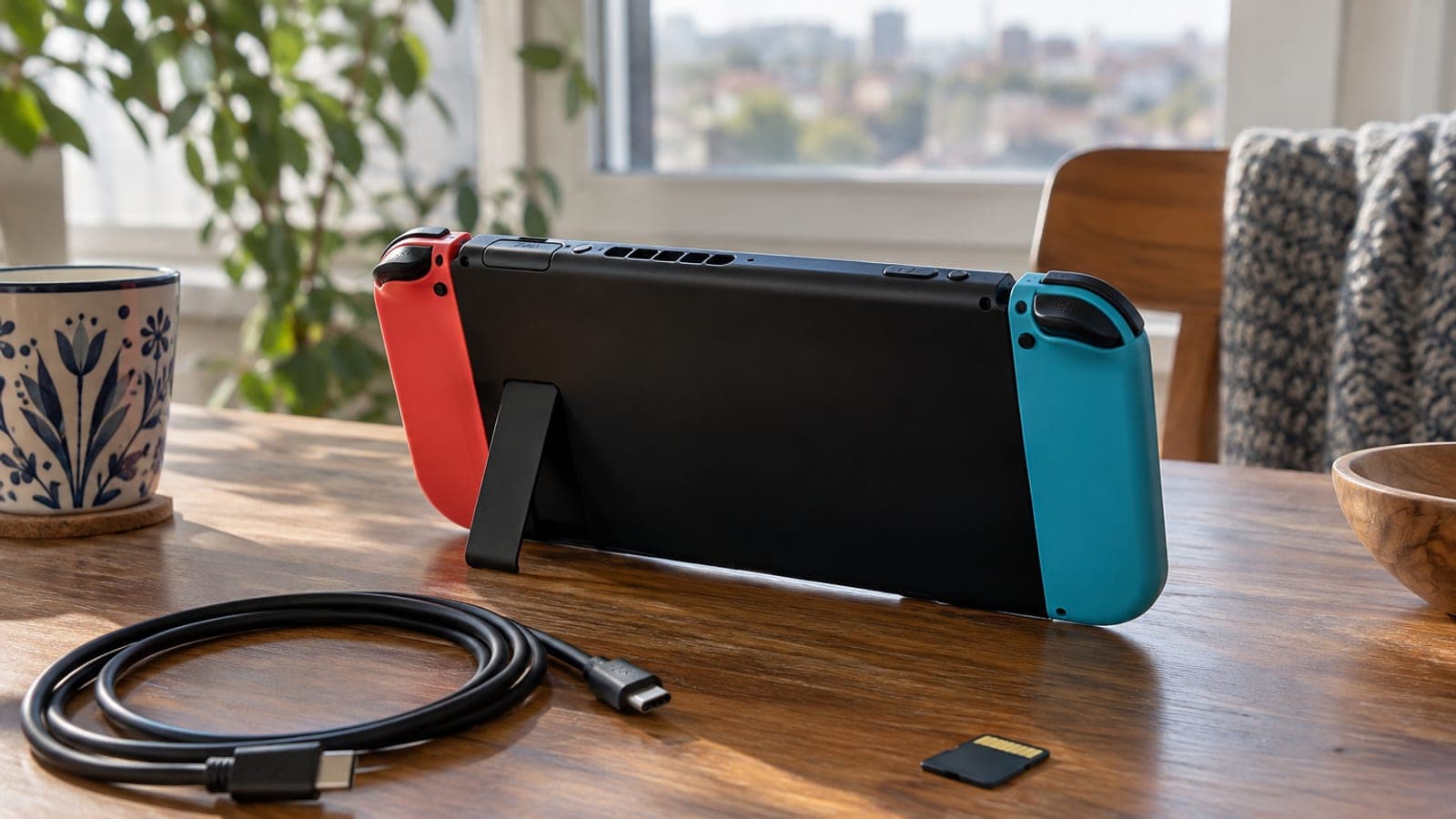
Short answer
Plug the Switch 2 in, power it on, pick your language and Wi-Fi network, then sign in with your Nintendo Account. If you own an older Switch, choose the System Transfer step during setup and put both consoles on the same network to move saves, screenshots, and user profiles. Finish by downloading the free Switch 2 Edition updates from the eShop.
What you need
Step by step
Unbox and attach the Joy-Con the right way
Connect the console to the USB-C adapter and let it charge for at least 15 minutes. Slide each Joy-Con 2 toward the side rails until the magnets snap in, with the left stick sitting high and the right stick low. If one goes on backwards, press the release button on the back and flip it; nothing gets damaged.
Choose language, region, and Wi-Fi
Turkish is not offered on the language list, so pick English and set the region to Europe. Select your home network and enter the password, since both the data transfer and system updates depend on it. Set the time zone to Istanbul.
Sign in with your Nintendo Account
At the Link Nintendo Account step, enter the email and password for your existing account. That is what makes your earlier eShop purchases and your Nintendo Switch Online membership show up on the new console. No account yet? You can create one from the same screen.
Run a system transfer from the old Switch
When setup reaches Transfer Your Data, power on the old console and go to System Settings > System > System Transfer, then set the two units side by side. Save files, screenshots, video clips, and user profiles all move across. Keep both consoles plugged into power for the entire transfer.
Set your angle with the kickstand
Push the wide stand out from the back; it is stiff by design, so a bit of force is normal. It opens to nearly flat, which makes it easy to find a good angle on a desk, in bed, or on a tray table. In handheld mode you can also rest the stand between your fingers to balance the weight.
Download the free game upgrades
Open the eShop and check the For You row and search for Switch 2 versions of games you already own. Some update through a free patch, while a few big titles like Zelda: Breath of the Wild and Tears of the Kingdom ask for a paid upgrade of around 10 dollars. Insert the game card, download the update, and your save continues where you left off.
Review display and audio settings
In System Settings > Display, turn on automatic brightness. The screen gets bright enough to read outdoors, but there is no anti-glare coating, so shading it in direct sun helps a lot. The speakers are noticeably strong; enable the 3D audio option if you want more depth.
Add a grip for long sessions
The console weighs 530 grams, 129 grams more than the original Switch. If your hands cramp during long play sessions, fit a grip case such as the Satisfye ZenGrip 2 or the dbrand Killswitch. As an alternative, dock the console and play on the TV with your old Switch controllers.
Tips
Watch out
Never power off the consoles or drop the Wi-Fi connection during a system transfer; an interrupted transfer can corrupt save files. Also avoid inserting an older microSD card into the Switch 2, as only microSD Express cards are supported.
Frequently asked questions
+Do my old Switch games work on the Switch 2?
Most cartridge and digital Switch games run fine. Many get smoother performance and a sharper image through a free patch, while a handful of major titles require a paid upgrade.
+Where can I buy a Switch 2 in Turkey?
There is no official Nintendo store in Turkey, so buy from dealers under the authorized distributor Bilkom, large electronics retailers, or trusted online shops. Always ask for the warranty paperwork.
+Which region should I pick to buy games on the eShop?
Turkey is not among the supported Nintendo eShop regions. The usual workaround is a European-region account paired with that region's payment method or prepaid digital codes.
+The screen is LCD, not OLED. Is that a problem?
At 279 PPI the LCD is clearly sharper than the original Switch and its colors are more accurate. Dark scenes lack OLED's deep blacks, but day to day the difference is minor.
+Will attaching the Joy-Con backwards break the console?
No. The controllers still work while reversed, the directions are simply flipped. Press the release button, turn them around, and reattach.
Sources and verification
Published: September 11, 2026. tell us. Written for readers in Turkey: the system language menu has no Turkish option, the eShop has no Turkish region, and hardware is sold through Bilkom-authorized dealers rather than an official Nintendo store.
This content is for information only; for official procedures the relevant institution’s current announcements take precedence. Details: disclaimer.