How do you delete a Google Photos backup without losing phone copies?
How to erase the photos uploaded to the cloud and free up Google account storage without touching the copies stored on your phone.
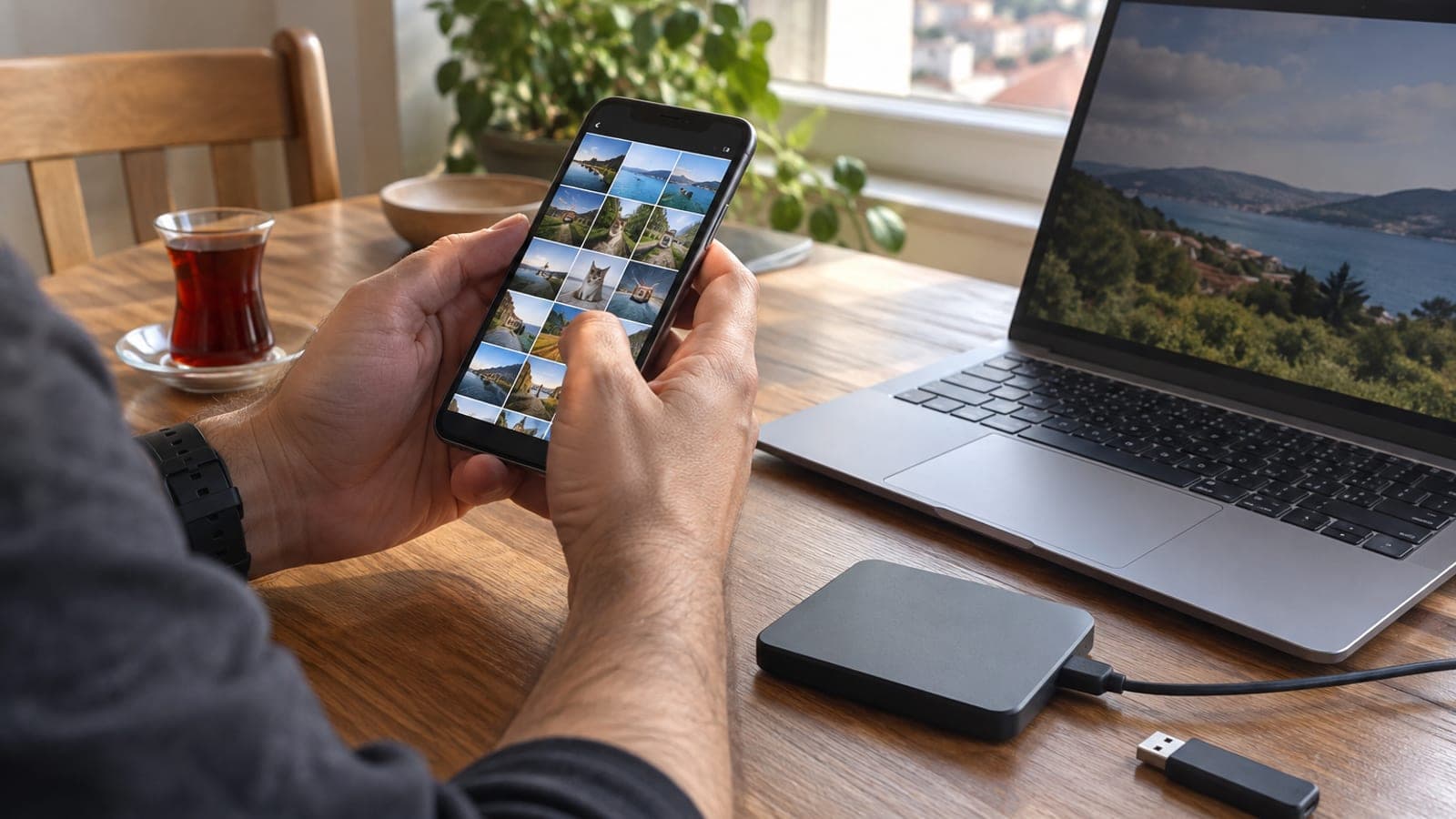
Short answer
In the Google Photos app, tap your profile picture, go to Photos settings > Backup, then scroll to the bottom of the list and open "Delete backup from this device". Tick the confirmation box and confirm: every photo and video uploaded from that device disappears from the cloud while the files stay in your phone's gallery.
What you need
Step by step
Confirm the photos are on the phone
Before deleting anything, open Gallery or Files and check that the images in the DCIM folder are still on the device. If you have used the "Free up space" feature in the past, some files may exist only in the cloud. When in doubt, copy everything to a computer first.
Check for an app update
This option lived only on iOS for a long time and reached Android later. Open Google Photos in the Play Store or App Store and install any pending update. If you cannot find the option in the menu, an outdated version is almost always the reason.
Open the backup settings
Launch Google Photos and tap your profile picture in the top right corner. From the panel that opens, follow Photos settings > Backup. This screen also shows which account is in use and how much storage is left.
Tap "Delete backup from this device"
In the Backup menu, scroll all the way down and tap the "Delete backup from this device" row. The option covers only content uploaded from that particular phone; albums you uploaded from other devices or from a computer are left alone.
Read the warning and tick the box
The screen that appears lists exactly what will be removed, so take a moment to read it. Then tick the box next to "I understand that photos and videos from this device will be deleted from Google Photos".
Confirm the deletion and check storage
Tap the "Delete Google Photos backup" button. With large archives the process can take a few minutes. When it finishes, open Google One or photos.google.com and confirm that the used storage figure has dropped.
Decide whether to turn backup on again
If backup stays off after the deletion, newly captured photos will not go to the cloud either. If your only goal was freeing space, you can switch backup back on using the "Storage saver" setting instead of "Original quality".
Tips
Watch out
This action cannot be undone: every photo and video uploaded from that device is removed from your Google account, leaving a single copy on your phone. If the phone is lost, stolen or breaks, that content is gone for good. Do not delete unless you have another backup.
Frequently asked questions
+Will the photos on my phone be deleted too?
No. Only the cloud copies in Google Photos are removed; the files in your device gallery stay put. The exception is anything already cleared from the phone with "Free up space", since the cloud held its only copy.
+I cannot find this option in the menu, what should I do?
Usually the app version is outdated. Update Google Photos from the Play Store or App Store, then close and reopen the app; the feature rolled out to Android after iOS.
+Do photos uploaded from other devices disappear as well?
No. The option targets only content uploaded from the device you are using at that moment. Files uploaded from another phone, tablet or computer stay in your account.
+How much space will this free in my Google account?
The space freed equals the total size of the photos and videos uploaded from that device. Compare the figures before and after on the storage screen in the Google One app.
+Can I recover the deleted photos?
For a short window you can restore them from the trash, but that is not guaranteed and they are erased permanently once the period expires. For critical archives, make a second backup first.
Sources and verification
Official pages for this process
Published: September 13, 2026. tell us. In Turkey, services such as Turkcell Dijital Depo, Vodafone Bulut or Yandex Disk are common alternatives for keeping a second backup outside Google Photos.
This content is for information only; for official procedures the relevant institution’s current announcements take precedence. Details: disclaimer.