How do you set up swipe actions in the Gmail app?
Choose what a left or right swipe does in the Gmail mobile app and clear your inbox in seconds.
Short answer
Open the Gmail app, tap the three-line menu at the top left, then go to Settings > General settings > Swipe actions. Assign Archive, Delete, Mark as read/unread, Move to, Snooze or None separately to right swipe and left swipe. The change takes effect immediately, with no save button to tap.
What you need
Step by step
Open the Gmail app
Launch Gmail on your phone and let the inbox finish loading. The swipe setting lives inside the app only, so you will not find it in Gmail on a desktop browser.
Open the side menu
Tap the three horizontal lines in the top left corner. The panel that slides out lists your labels, with the settings link near the bottom.
Go to Settings > General settings
Scroll to the bottom of the panel and tap Settings, then pick General settings at the top of the list. Preferences here apply to every account on that phone.
Tap Swipe actions
Inside General settings, tap the Swipe actions row. You will see two separate entries: Right swipe and Left swipe, each with its own action.
Assign an action to each direction
Tap Right swipe or Left swipe and select Archive, Delete, Mark as read/unread, Move to, Snooze or None. Picking a different action for each direction lets you handle two kinds of mail with one thumb.
Test it in the inbox
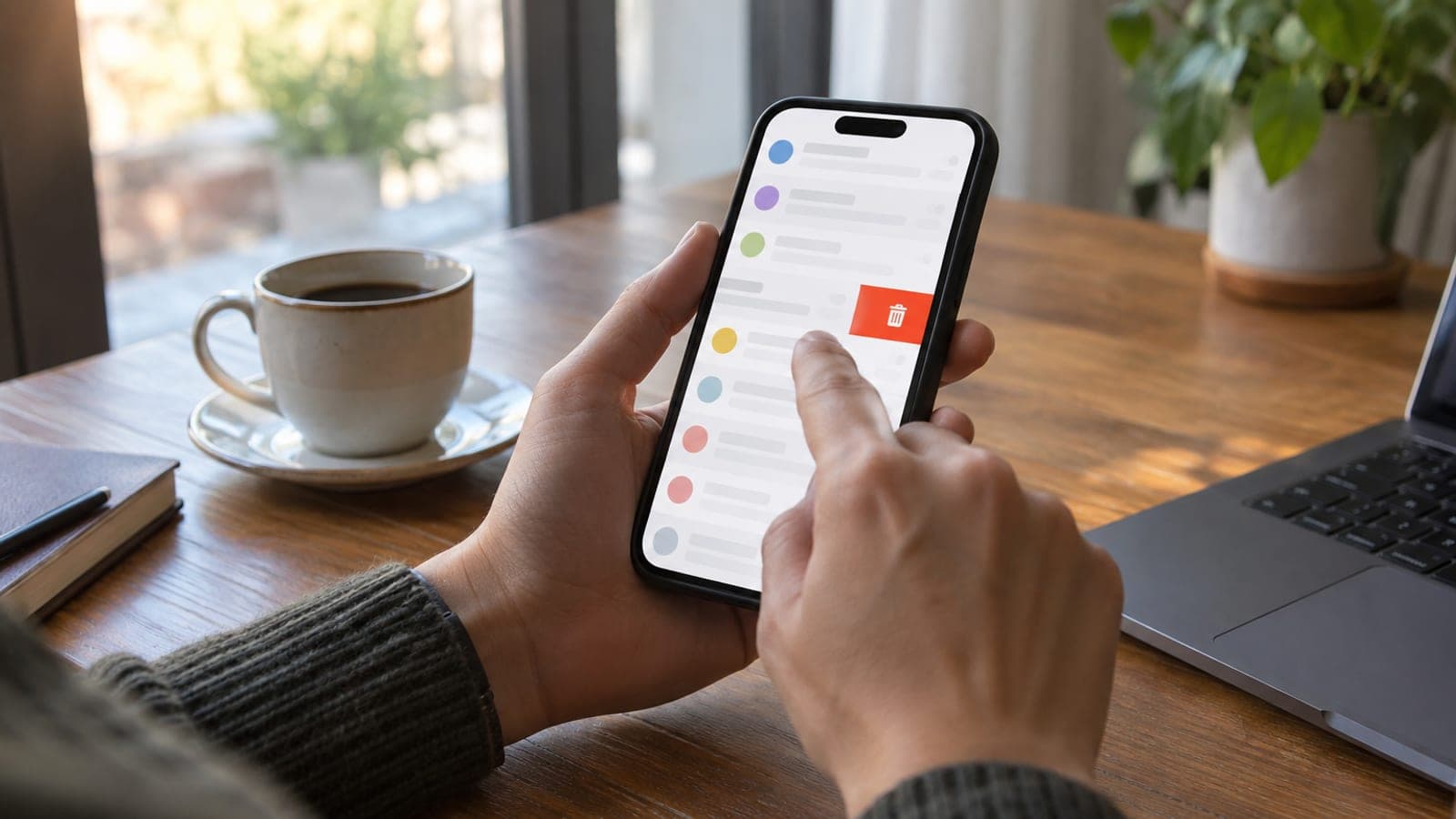
Go back to the inbox and swipe a message in the direction you configured. The colored icon that appears during the swipe shows which action will run, and if it was the wrong one, tap Undo at the bottom of the screen.
Tips
Watch out
If you assign Delete to a swipe, one flick sends the email to Trash, where it is erased permanently after 30 days. For important accounts, prefer Archive: archived mail never disappears and still shows up in search, which matters if your phone swipes on its own in your pocket.
Frequently asked questions
+Does Gmail on a computer have swipe settings too?
No, swipe actions exist only in the Android and iPhone apps. On the web you can use keyboard shortcuts and the quick action buttons that appear when you hover over a message.
+Where does an archived email go?
It leaves the inbox but is not deleted. It stays in the All Mail section of the menu and shows up normally whenever you search for it.
+I swiped the wrong way, can I undo it?
Yes. An Undo prompt appears at the bottom of the screen right after the swipe, and tapping it within a few seconds returns the email to your inbox.
+Can I assign the same action to both directions?
Yes, both swipes can do the same thing. Most people find two different actions more useful, since one gesture then covers two decisions.
+Does the setting apply to all my Gmail accounts?
Yes. Because Swipe actions sits under General settings, it works the same way for every account on that phone. There is no per-account choice.
Sources and verification
Official pages for this process
Published: September 12, 2026. tell us.
This content is for information only; for official procedures the relevant institution’s current announcements take precedence. Details: disclaimer.