How do you find and limit the app eating your mobile data?
Use your phone's data usage screen to spot the app draining your plan and cut off its background data in about five minutes.
Short answer
On Android go to Settings > Network & internet > SIMs > App data usage. On iPhone go to Settings > Cellular. Sort the list from highest to lowest, tap the top app, and turn off "Background data" on Android or flip the app's switch off on iPhone. Then enable Data Saver or Low Data Mode and move automatic updates to Wi-Fi only.
What you need
Step by step
Set the billing cycle
Align the counter with your billing date so the numbers mean something. On Android open Settings > Network & internet > SIMs > App data usage, tap the gear icon at the top right, and set "Billing cycle" to the day your plan renews. On iPhone tap "Reset Statistics" at the bottom of Settings > Cellular and note the date.
Sort the usage list
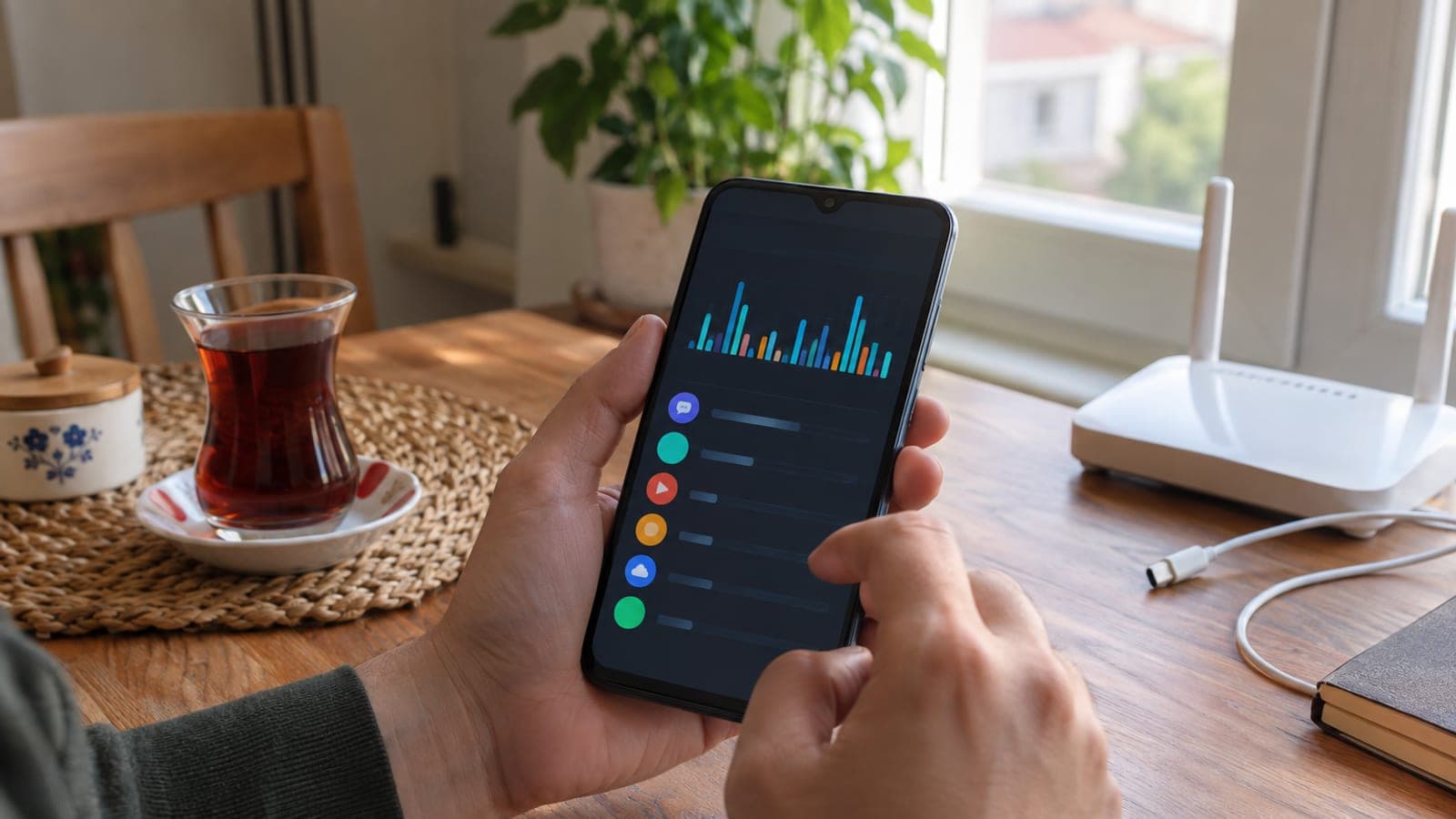
On the same screen apps are already ranked from heaviest to lightest consumer. Read the MB or GB figure for the top three. Video and cloud backup apps usually lead the list, and anything burning more than 3 GB in 30 days deserves a closer look.
Cut off background data
Tap the culprit in the list. On Android turn off "Background data" and "Unrestricted data usage" so the app only spends data when you open it yourself. On iPhone go back to Settings > Cellular and flip the green switch next to the app, which leaves it working on Wi-Fi only.
Turn on system-wide saving
If throttling one app is not enough, apply the brake everywhere. On Android open Settings > Network & internet > Data Saver and turn it on. On iPhone go to Settings > Cellular > Cellular Data Options and enable "Low Data Mode". This stops automatic backups and preloading.
Lower in-app video quality
Video apps are the biggest consumers by far. In YouTube tap your profile > Settings > Video quality preferences > "On mobile networks" > Data saver. In Instagram open Settings and privacy > Data usage and media quality and turn on "Use less mobile data".
Move updates to Wi-Fi
Silent updates can quietly take 1 to 2 GB a month. In the Play Store tap your profile > Settings > Network preferences > Auto-update apps > "Over Wi-Fi only". On iPhone open Settings > App Store and turn off "Automatic Downloads" under Cellular Data.
Set a warning and a hard limit
On Android go to Settings > Network & internet > SIMs > gear icon, use "Set data warning" for 80 percent of your plan, and "Set data limit" for the exact plan size. When the limit is reached the phone switches mobile data off on its own, so no overage charges appear.
Check again after 48 hours
After two days of normal use, open the same data usage screen and read the list again. If the suspect app is still on top, compare your remaining data in the carrier app, then uninstall and reinstall the app if the numbers still look wrong.
Tips
Watch out
If you set the Android data limit higher than your actual plan size, you lose overage protection entirely. Also, turning off background data for messaging apps means notifications stop arriving while the phone is locked, so leave background data on for apps like WhatsApp to avoid missing urgent calls.
Frequently asked questions
+Does turning off background data stop the app from working?
No. The app still uses mobile data when you open it yourself. It just cannot spend data or push notifications while you are not using it.
+Why does the phone's data figure differ from my carrier's?
The phone counts from the moment its counter was reset, while the carrier measures the billing period. For billing and overage, the carrier's number is what counts.
+Which apps use the most data?
Video apps, typically YouTube, TikTok and Instagram. Streaming at 1080p costs roughly 1.5 GB per hour, while 480p is closer to 500 MB.
+Does Data Saver slow the phone down?
It does not reduce your connection speed, but it lowers image quality and limits background syncing. Pages and videos load at lower resolution.
+Do I have to buy an add-on package when my data runs out?
No. If you set a data limit on Android, the phone turns mobile data off automatically. Otherwise carriers usually throttle your speed or bill an overage fee.
Sources and verification
Published: September 14, 2026. tell us. Menu names follow stock Android and iOS wording; manufacturer skins may label them slightly differently.
This content is for information only; for official procedures the relevant institution’s current announcements take precedence. Details: disclaimer.