How do you sign in to e-Devlet with a mobile signature or e-signature?
Steps for signing in to the e-Devlet Gateway with your mobile signature or electronic signature instead of a password.
Short answer
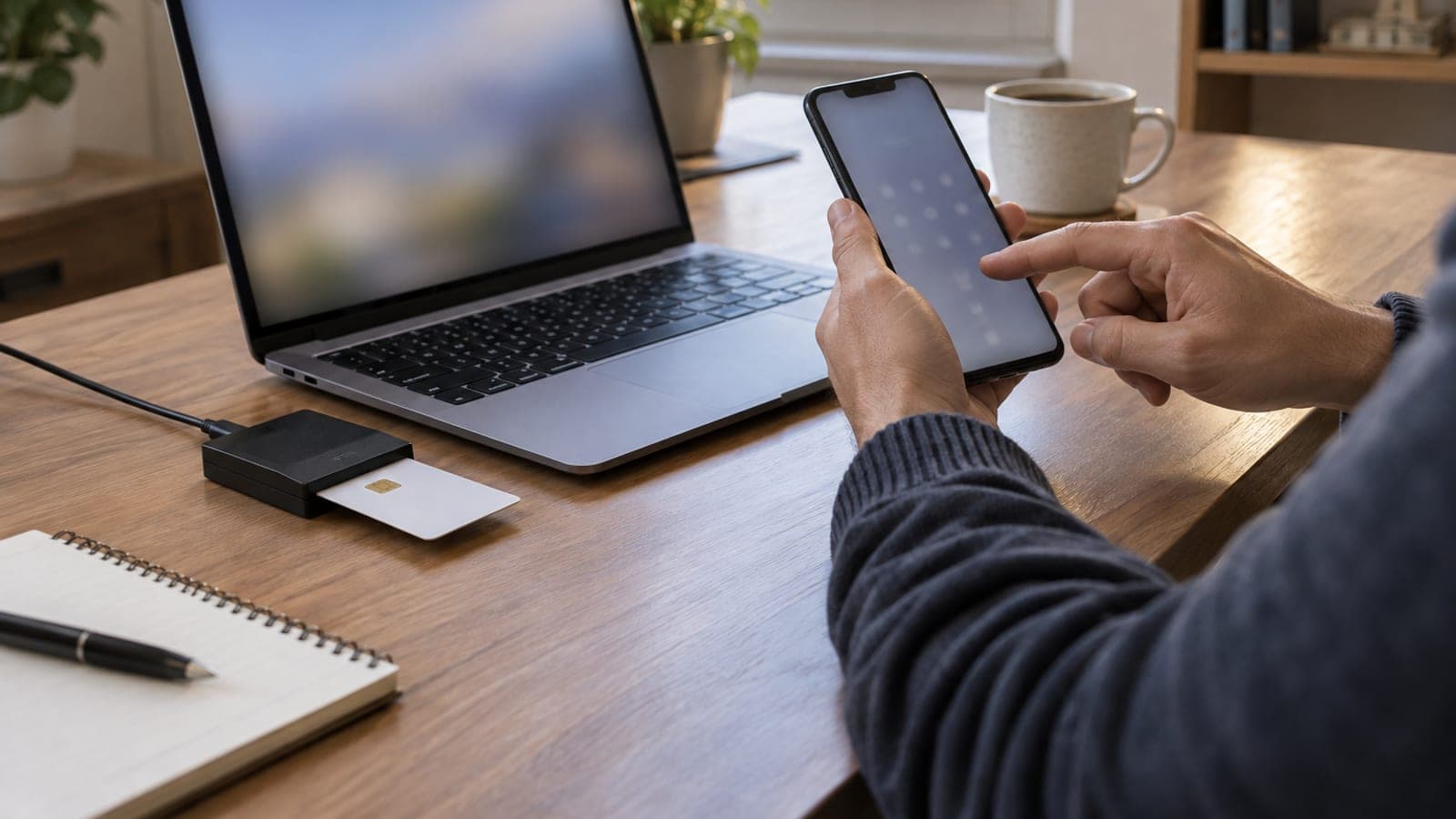
Go to turkiye.gov.tr and click Giriş Yap at the top right. On the authentication screen, pick the Mobil İmza tab, enter your Turkish ID number and operator, then approve the request on your phone with your mobile signature PIN. For the e-İmza tab, plug in your card reader, launch the signing application, select your certificate and enter your card PIN.
What you need
Step by step
Open the login screen
Visit turkiye.gov.tr in your browser and click the Giriş Yap button at the top right. The e-Devlet Gateway Identity Verification System screen opens. On it you will see the e-Devlet Şifresi, Mobil İmza, e-İmza, T.C. Kimlik Kartı and İnternet Bankacılığı tabs side by side.
Choose your method
Click Mobil İmza if you will approve with your phone, or e-İmza if you will use a card reader. The form for the tab you pick opens underneath. If you choose the wrong one, the form will ask for something you do not have, so just click the other tab to switch.
Enter your mobile signature details
Fill in the T.C. Kimlik Numarası field on the Mobil İmza form and pick your line's operator from the Operatör list. Then press Gönder. A verification text or transaction code appears on screen; keep the page open so you can compare it with the request arriving on your phone.
Approve the request with your PIN
A mobile signature approval screen opens on your phone and displays a code. If it matches the one on your computer, enter your mobile signature PIN and confirm. After approval the browser returns to your e-Devlet home page on its own.
Launch the application for e-signature
On the e-İmza tab, first connect your card reader to the computer and insert the card. Download and run the e-Devlet signing application from the link on screen, or click Uygulamayı Başlat if it is already installed. Approve the browser prompt if it asks permission to open the application.
Select the certificate and enter the PIN
The signing window lists the qualified certificates on your card. Select the one issued in your own name, press İmzala and type your card PIN. Once the signature is verified, your e-Devlet session opens in the browser.
Verify the session and close it
Check that your name and surname appear at the top right so you know you are in the right account. When you are done, click your name and use the Güvenli Çıkış option. On a shared computer, also remove the card from the reader and close the browser.
Tips
Watch out
Entering your PIN incorrectly several times in a row locks your mobile signature or e-signature card, and unlocking is only possible through your operator or certificate provider. Never share your PIN, and never approve a transaction for someone who calls and asks you to confirm one.
Frequently asked questions
+Do I need a separate password to sign in to e-Devlet with a mobile signature?
No. You do not need an e-Devlet password; your Turkish ID number, operator selection and mobile signature PIN are enough.
+The browser cannot open the application during e-signature login. What should I do?
Download and reinstall the signing application from the link on screen, update your card reader driver, and approve the browser's request to open the application.
+Can I sign in for myself with a corporate e-signature?
e-Devlet login uses a qualified certificate issued to an individual. If the card holds no certificate in your name, the login will not complete.
+Can I use a mobile signature login with a foreign phone line?
Mobile signatures are tied to lines from operators in Türkiye. While roaming abroad the approval request may be delayed, so the e-signature method is more reliable there.
+I entered everything correctly but the login will not open. Who should I contact?
For mobile signature problems contact your line's operator, for e-signature problems contact the provider that issued your certificate, and for errors on the e-Devlet screen contact e-Devlet Gateway support.
Sources and verification
Official pages for this process
Published: September 14, 2026. tell us. Interface labels are kept in Turkish as they appear on turkiye.gov.tr.
This content is for information only; for official procedures the relevant institution’s current announcements take precedence. Details: disclaimer.