How do you cool down an overheating laptop?
A step-by-step home guide to cooling an overheating laptop, from measuring temperatures to cleaning fans and replacing thermal paste.
Short answer
Measure first with HWiNFO64: over 95 °C under load is a real overheating problem. Close CPU-hungry apps in Task Manager, set Maximum processor state to 85% in Power Options, raise the laptop 2-3 cm on a hard surface, and blow out the vents with canned air. If nothing helps and the machine is 3-4 years old, replace the thermal paste.
What you need
Step by step
Measure the temperature
Download HWiNFO64, launch it with the Sensors-only option, and watch the CPU Package and GPU Temperature rows. Idle readings of 45-60 °C are normal; if 10 minutes of gaming or video rendering pushes you past 95 °C and clock speeds drop (thermal throttling), you have a genuine heat problem. Write down the maximum values so you can compare later.
Cut the background load
Open Task Manager with Ctrl+Shift+Esc and sort the Processes tab by the CPU column. End task on any unnecessary app holding above 10% continuously. Then go to Settings > Apps > Startup and switch off programs you do not need. Half of a high idle temperature usually comes from here.
Cap the power settings
Set Settings > System > Power & battery > Power mode to Best power efficiency. Then open Control Panel > Power Options > Change plan settings > Change advanced power settings > Processor power management and change Maximum processor state from 100% to 85%. On most machines this single setting drops temperatures 8-12 °C with no noticeable slowdown in everyday work.
Open up the airflow
Get the laptop off beds, sofas, and your lap; soft surfaces block the intake holes underneath and the fan just spins for nothing. Put it on a hard desk and raise the rear 2-3 cm with a stand or two wooden blocks. This change alone shows up as 5-10 °C in your measurements.
Blow out the fan with canned air
Shut the laptop down completely and unplug the charger. Spray canned air from 20-30 cm away in short 1-2 second bursts into the side exhaust grille and the bottom intake holes. Keep the can upright so no liquid comes out, and hold it at an angle to the grille so dust is pushed outward rather than deeper in.
Remove the bottom panel and clean the radiator
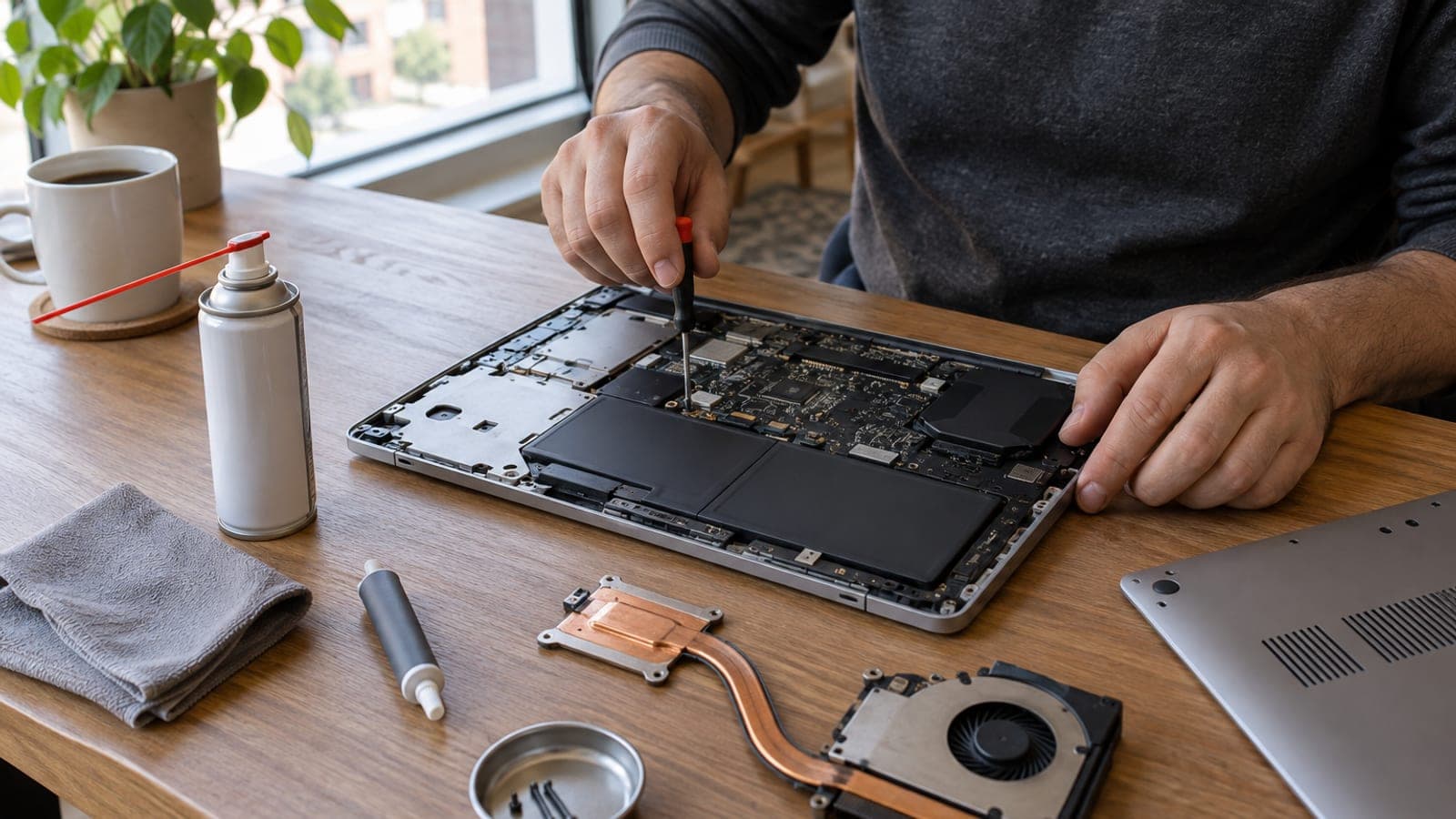
If canned air was not enough, undo every screw on the bottom panel with the PH0 screwdriver and lift the cover with a plastic spudger. Hold a fan blade still with your finger while you blow, and lift the dust mat wedged in the radiator fins with a soft brush. Letting the fan spin freely while blowing damages its bearing. Expect 20-30 minutes.
Replace the thermal paste
If the machine is more than 3-4 years old, the paste has dried out. Undo the heat pipe screws in a crossed order and wipe the old paste off completely with 99% isopropyl alcohol and a microfiber cloth. Put a rice-grain sized dot of MX-4 in the middle of the CPU and GPU die, refit the heat pipe, and tighten the screws evenly in a crossed order. Expected gain: 6-15 °C.
Update the BIOS and fan profile
Install the manufacturer's utility: Lenovo Vantage, MSI Center, ASUS Armoury Crate, HP Support Assistant, or Dell SupportAssist. Apply the driver and BIOS updates, since vendors usually fix the fan curve through a BIOS release. In the same tool you can pick Performance or Fan Boost mode to make the fan kick in earlier.
Tips
Watch out
Before opening the bottom panel, shut the machine down, unplug the charger, and remove the battery if it is removable; on sealed models disconnect the battery connector from the motherboard. The three most common mistakes are letting the fan spin freely under canned air, tightening the heat pipe screws one at a time all the way down, and applying so much paste that it spreads across the whole die.
Frequently asked questions
+What laptop temperatures count as normal?
45-60 °C at idle and 80-90 °C under heavy load are normal. If you constantly see 95-100 °C with dropping clock speeds, or the machine shuts itself off, it needs attention.
+How often should I replace the thermal paste?
Every 3-4 years is enough for normal use. For gaming laptops and machines that run hot continuously, every 2 years is a better interval.
+Is a cooling pad worth buying?
On thicker laptops with bottom intakes it gives a 3-7 °C improvement. On thin ultrabooks the effect is negligible, so a passive stand that lifts the rear 2-3 cm makes more sense.
+What does a shop cleaning and paste change cost?
Independent repair shops typically charge the equivalent of roughly $15-30 for a clean and repaste. Authorized service centers and gaming laptops can easily double that.
+What should I do if the fan never spins?
If you hear nothing even under heavy load, the fan is likely dead or its connector has come loose. Stop using the laptop and take it in for service, since the heat can permanently damage the motherboard.
Sources and verification
Official pages for this process
Published: September 14, 2026. tell us. Prices converted from Turkish market figures (2024-2025) to approximate USD ranges.
This content is for information only; for official procedures the relevant institution’s current announcements take precedence. Details: disclaimer.