How do I back up files to free cloud storage and an external drive?
Combine 15 GB of Google Drive, 5 GB of OneDrive and one external drive into a weekly automatic backup routine for photos and documents.
Short answer
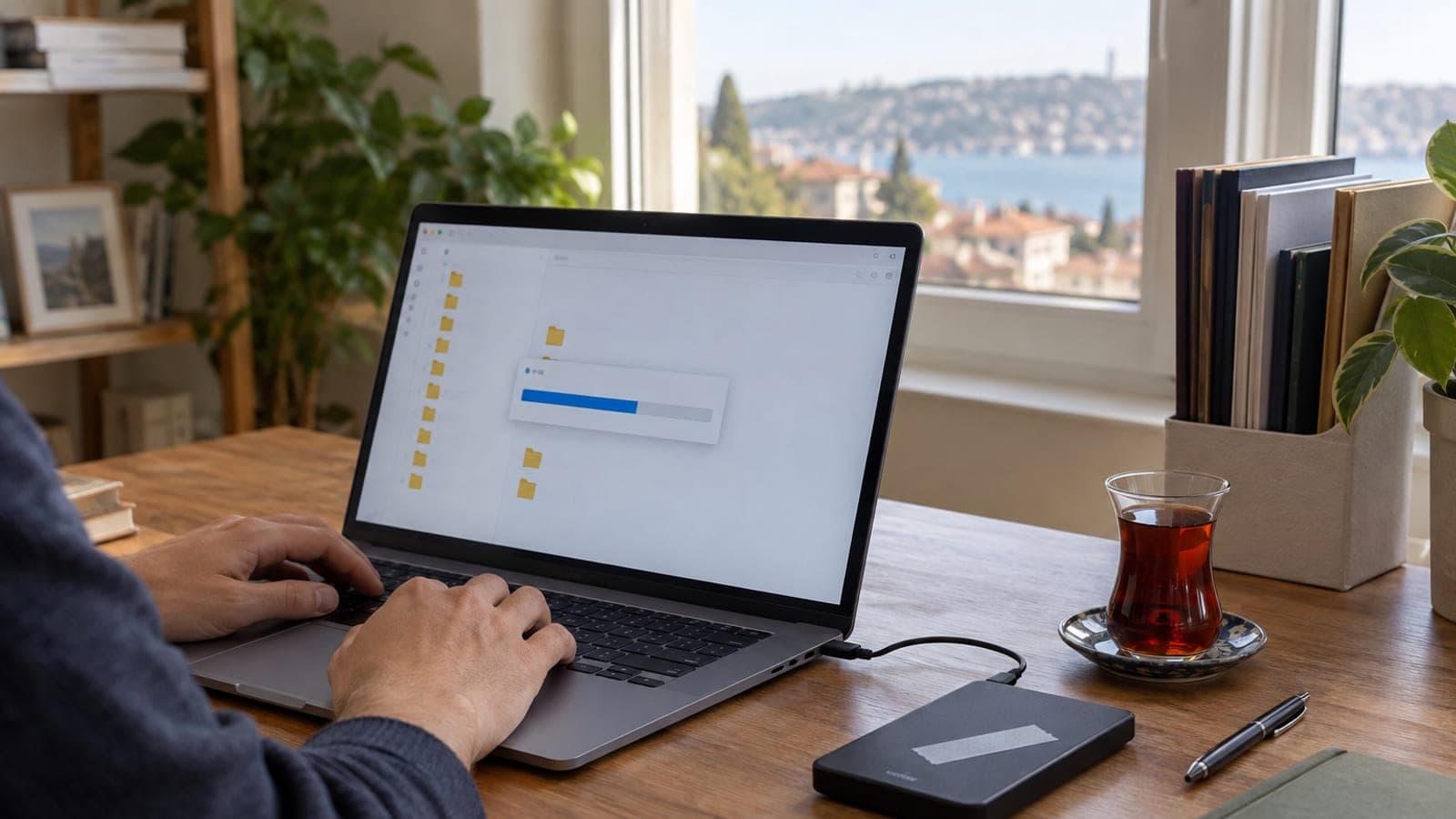
Follow the 3-2-1 rule: the original stays on your computer, one copy on an external drive, one copy in the cloud. Sync Documents and Pictures to the free 15 GB with Google Drive for desktop, and schedule File History or FreeFileSync weekly for the drive. Setup takes about 40 minutes, the first full backup 1-3 hours, later runs 5-10 minutes.
What you need
Step by step
Pick the folders and measure their size
In File Explorer, right-click Documents, Pictures, Desktop and Downloads one by one, open Properties and write down the GB figure on the "Size" line. Under 15 GB total, one cloud account is enough; over that, split photos to Google Drive and documents to OneDrive. Without this measurement you cannot tell which free tier will fit.
Format the external drive and set up its folder layout
Plug in the drive, right-click it in File Explorer and choose Format. Pick NTFS as the file system if you only use Windows, or exFAT if you also swap files with a Mac; leave Allocation unit size at default and keep "Quick Format" checked. Then create a single top folder on the drive, such as BACKUP-2026, and send every backup there.
Turn on cloud sync with Google Drive for desktop
Install Drive for desktop from google.com/drive/download and sign in with your Google account. Click the Drive icon near the clock, then gear > Preferences > My Computer > Add folder, add Documents and Pictures, and check "Back up to Google Drive". Press Save and the first upload starts; 20 GB usually needs a full night on an average home connection.
Point Windows File History at the external drive
Open Control Panel > System and Security > File History, use "Select drive" to mark the external drive, and press Turn on. Under Advanced settings set "Save copies of files" to Every hour and "Keep saved versions" to 1 year, so you can roll back to an older version of a file you deleted by mistake. On a Mac the equivalent is System Settings > General > Time Machine > Add Backup Disk.
Create a mirror job in FreeFileSync and schedule it weekly
Install FreeFileSync, choose the source folder on the left (for example C:\Users\yourname\Pictures) and the BACKUP-2026 folder on the drive on the right. Pick "Mirror" mode from the green gear, click Compare and then Synchronize. Save the job as a .ffs_batch file via "Save As > Batch Job" and add it in Task Scheduler > Create Basic Task to run weekly, for example Saturday at 20:00.
Encrypt the drive and any sensitive cloud files
On Windows Pro, right-click the drive and choose "Turn on BitLocker", then save the recovery key to your Microsoft account. On Home editions or on a Mac, create an encrypted container with the free VeraCrypt. ID scans, contracts and bank paperwork are readable by anyone if the drive goes missing unencrypted, so do not skip this.
Run a restore test and put it on your calendar
Copy three random files from the external drive to your desktop and open them; if any file is corrupt, the backup is worthless. Repeat the same test with a file downloaded from drive.google.com. Set a recurring "Backup test" reminder every three months in your phone calendar; the check takes 10 minutes.
Tips
Watch out
The most common mistake is trusting a single copy. Cloud sync is not a backup: a file you delete on your computer is deleted in the cloud too, and the Google Drive trash keeps it for only 30 days. Keep the external drive copy separate and build it with a mirror or archive job rather than live sync.
Frequently asked questions
+Can I use a USB flash drive instead of an external drive?
It works for a small document archive but not for long-term backup; flash drives fail and get lost more easily. For more than 100 GB, a 1 TB external drive is safer and cheaper per GB.
+How long does the first backup take?
Around 20-40 minutes for 100 GB to an external drive over USB 3.0. The same data to the cloud takes over 24 hours at 10 Mbps upload, so leave the computer on and run it overnight.
+Should I buy an SSD or an HDD?
For a backup drive that mostly sits on a shelf, an HDD is fine and gives 2-3 times the capacity for the same money. If you carry the drive around often, choose an SSD for its shock resistance.
+What do I do if the free 15 GB is not enough?
Keep videos on the external drive only and put just documents and photos in the cloud. Opening a second free account (OneDrive 5 GB, Mega 20 GB) also expands your space at no cost.
+How can I be sure my backup is complete before reinstalling Windows?
Before formatting, compare the folder size on the external drive with the original folder and open the three largest files straight from the drive. If the sizes match and the files open, the backup is good.
Sources and verification
Official pages for this process
Published: September 14, 2026. tell us.
This content is for information only; for official procedures the relevant institution’s current announcements take precedence. Details: disclaimer.