How do you create and use a virtual card?
Steps for generating a virtual card in your bank's mobile app and using it safely for online shopping.
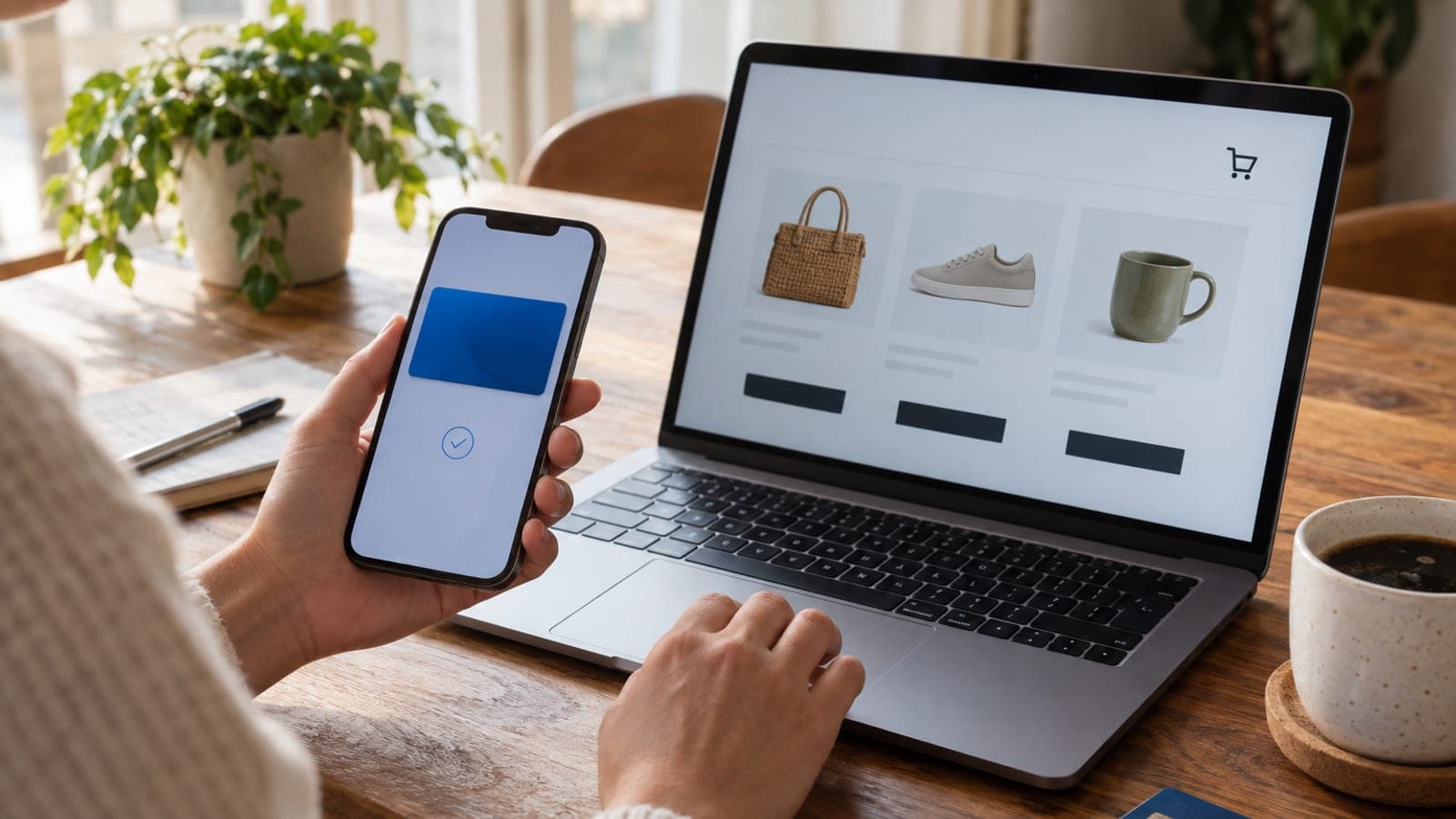
Short answer
Open your bank's mobile app, go to "Cards" and pick "Virtual Card" or "Create Virtual Card", choose the parent card it will be linked to, set a spending limit and generate the card. The card number, expiry date and CVV appear in the app; enter them at checkout and complete 3D Secure verification. When you are done, drop the limit to zero or delete the card.
What you need
Step by step
Log in to mobile banking
Open your bank's official app and log in with your password, face recognition or fingerprint. Only download the app from the App Store or Google Play. Enter through the app icon itself, never through a link that arrives in a browser or message.
Open the Cards menu
Tap the "Cards" tab in the bottom menu. This screen lists your credit cards and your debit card. In most banks the virtual card option sits at the bottom of that list or behind the "+" or "New Card" button in the top right.
Select the create virtual card step
Tap "Virtual Card" or "Create Virtual Card". In some apps this step lives under "Card Transactions" or "Digital Cards". Read the information screen that appears and move on with "Continue".
Choose the linked card and the limit
Pick which credit card or account the virtual card will be linked to, then type an amount into the spending limit field that just covers this purchase. Keeping the limit low caps the damage on its own even if the card details leak. Press "Confirm" and enter the verification code sent by SMS.
View the card details
Once the card is generated, tap "Show Card Details" or the eye icon. The 16-digit number, expiry date and CVV appear on screen, usually with a copy button next to them. Do not store these details as a screenshot; come back here whenever you need them.
Use the card at checkout
On the payment page of the shopping site, enter the cardholder name, the virtual card number, the expiry date and the CVV. Your bank's 3D Secure screen then opens; type the one-time password sent by SMS and approve it. Once the payment goes through, the spending shows up in your statement and notifications under the virtual card name.
Close the card or zero the limit afterwards
If it was a one-off purchase, select the virtual card on the "Cards" screen and use "Delete Card", or set the limit to zero with "Update Limit". For subscription payments leave the card open but keep the limit close to the monthly amount. Unauthorised charge attempts then get declined because of the limit.
Tips
Watch out
Never share card details by email, WhatsApp or phone; a bank employee will never ask for your CVV or SMS password under any circumstances. The most common mistake is reading the 3D Secure code out to a caller; the moment that code is shared the payment is approved and getting the money back becomes very hard.
Frequently asked questions
+Is creating a virtual card free?
At most banks creating a virtual card is free and there is no separate annual card fee. Still, confirm your own bank's pricing in the "Fees and Commissions" section of the app.
+Can I pay with a virtual card in a physical store?
A virtual card is mainly for online and phone payments. However, if you add it to your bank's digital wallet or your phone's payment app, you can also use it contactlessly in stores.
+Can a virtual card be created with a debit card?
Many banks allow virtual cards linked to a current account, so people without a credit card can shop online too. If you see your current account in the list of accounts during the "Create Virtual Card" step, it is possible.
+What happens to my earlier spending if I delete the virtual card?
Deleting the card does not cancel past purchases; instalments and debt continue to be tracked on your main card's statement. It only stops new payments being taken with that number.
+How many virtual cards can I create?
The number of virtual cards you can keep open at once varies by bank. If you hit the limit, delete one you are not using and create a new card.
Sources and verification
Published: September 14, 2026. tell us. Menu names are translations of typical Turkish banking app labels and may differ slightly in your bank's English interface.
This content is for information only; for official procedures the relevant institution’s current announcements take precedence. Details: disclaimer.