How do you scan a document with your phone and sign the PDF?
Turn a paper A4 page into a clean PDF and add a signature using only the tools already on your phone.
Short answer
On iPhone, open Notes, start a new note, tap the camera icon and choose Scan Documents. On Android, open Google Drive and tap "+" > Scan. Capture the pages, tap Save, then use Share to export as PDF. To sign, open the PDF in the free Adobe Acrobat Reader, tap the pen icon > Fill & Sign > Create Signature, draw with your finger and save.
What you need
Step by step
Prepare the page and background
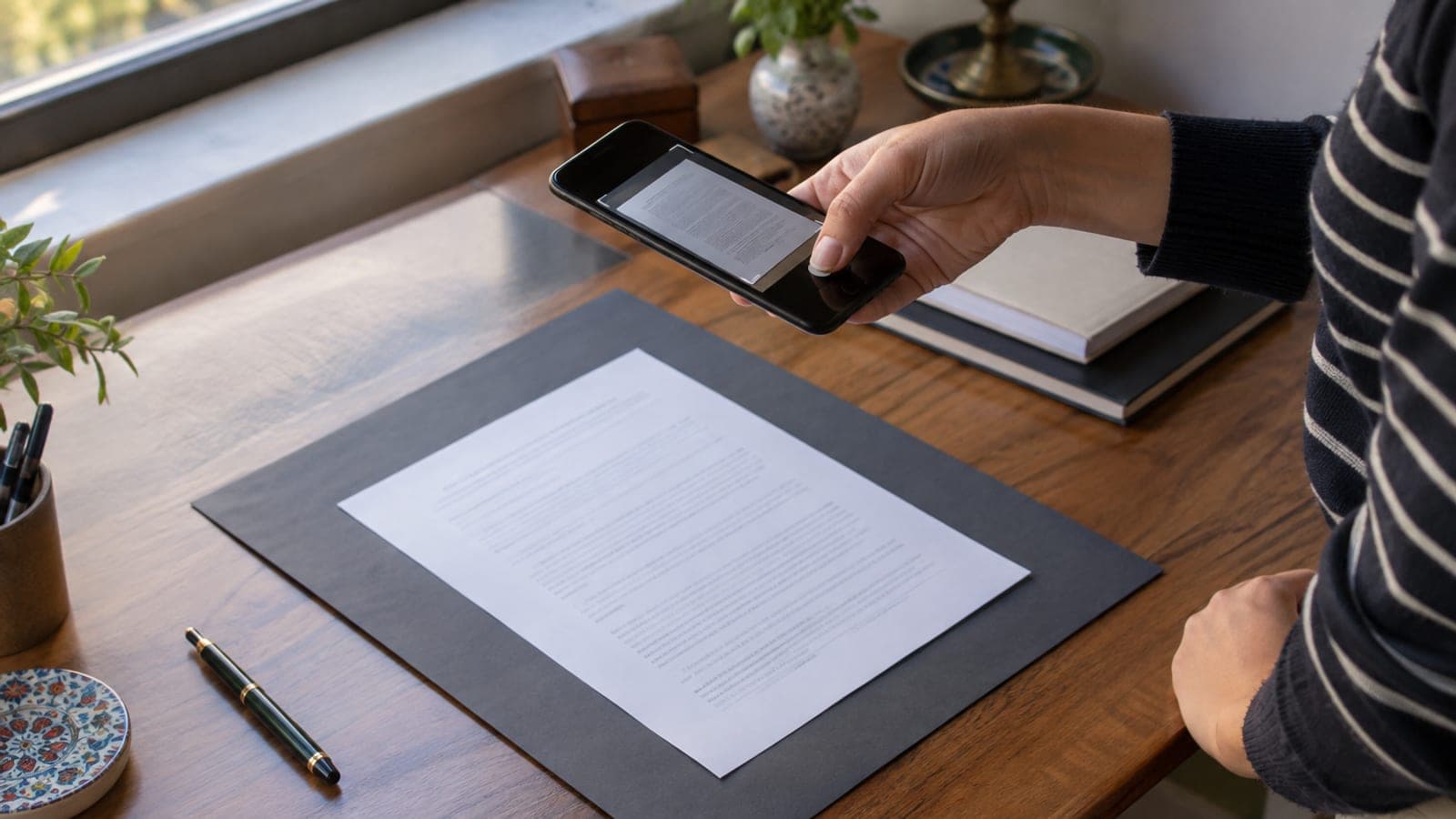
Lay the paper completely flat on a dark table or a sheet of black card, and if the corners curl, fold them back and leave a weight on top for a minute or two. The dark background helps the app find the paper edges automatically. Light the page from the front rather than the side, or you will get a glare streak down the middle.
Scan with Notes on iPhone
Open Notes and start a new note with the pencil-and-paper icon at the bottom right. Tap the camera icon above the keyboard and choose Scan Documents. Hold the phone 25-30 cm above the page; the capture fires automatically once the yellow frame locks on, otherwise press the white shutter and tap Keep Scan.
Scan with Google Drive on Android
Open Google Drive, tap the "+" button at the bottom right, then tap Scan. Some Samsung and Xiaomi models show a Google Document Scanner shortcut on the home screen instead; both do the same job. After capturing a page, use Add page (+) to append the remaining pages in order.
Fix the crop and the colour
Tap the small preview, then drag the corner handles of the crop tool exactly onto the paper edges, and use Rotate for 90-degree corrections if the page sits sideways. In the colour filters, choose Grayscale rather than Black & White for text documents so stamps and wet-ink signatures survive. Pinch to zoom on screen to confirm the text is readable.
Save and name the PDF
On iPhone tap Save at the top right, then press and hold the scan block in the note and choose Share > Save to Files. On Android type the file name on the Save screen and tap Save. Name the file with a date and name, like "residence-certificate-jane-doe-2025.pdf", so nothing gets mixed up in an institution's upload form.
Add your signature in Acrobat Reader
Open Adobe Acrobat Reader, go to the Files tab and pick your PDF. Tap the blue pen icon at the bottom right, then Fill & Sign; from the fountain-pen icon in the bottom bar choose Create Signature and draw your signature with a finger or stylus. Tap Done, drag the signature onto the signature line, and resize it with the blue handle at its corner.
Use Markup instead on iPhone
If you would rather not install Acrobat, tap the PDF in the Files app and open Markup with the circled pen-tip icon at the top right. Tap "+" at the bottom right > Signature > Add Signature and draw your signature once; the phone stores it, so later documents just need a pick from the list. Tapping Done writes the change into the same file.
Check the size and send it
Press and hold the file and use Get Info or Details to see its size; most institutional forms cap uploads at 2-5 MB. If you are over 5 MB, redo the scan with the Grayscale filter or use Reduce File Size in Acrobat. Then send it as a single PDF by email or through the institution's upload area.
Tips
Watch out
A signature drawn on screen with your finger is not a wet-ink signature and does not count as an electronic signature in legal terms. For title deeds, powers of attorney, loan and employment contracts, institutions want either the original wet-signed copy or a PDF signed with a qualified electronic signature. A drawn signature is only acceptable on informational forms and petitions.
Frequently asked questions
+Will institutions accept a PDF I scanned myself?
For informational applications and petitions, usually yes. For official transactions they may require a certified "true copy" or a PDF with a qualified e-signature, so asking the relevant office first is the fastest route.
+Can I just take a photo and turn it into a PDF?
You can, but scan mode corrects perspective and boosts contrast, so the text is far more legible. Plain photos are often rejected by institutional systems as unreadable.
+How do I get a qualified electronic signature?
You buy one from a certification service provider authorised by the national telecom regulator, typically for a yearly fee, delivered as a USB token or mobile signature, and you sign PDFs with the provider's own app.
+Why is my scanned PDF so large?
Colour scanning takes roughly 2-4 MB per page. Switching the filter to Grayscale or Black & White usually brings the file down to 200-500 KB without hurting readability.
+I cannot find the scan option in Notes or Drive, what now?
On iPhone you must be inside a new note with the keyboard open for the scan option to appear. On Android, update the Drive app from the Play Store; older versions do not show the Scan button.
Sources and verification
Official pages for this process
Published: September 14, 2026. tell us. Menu names reflect the English-language interfaces of iOS, Google Drive and Adobe Acrobat Reader; e-signature pricing and certification rules vary by country.
This content is for information only; for official procedures the relevant institution’s current announcements take precedence. Details: disclaimer.