How do you search anything on your screen with Circle to Search?
Circle, scribble or tap any text, face or error message on your Android screen and search it without leaving the app.
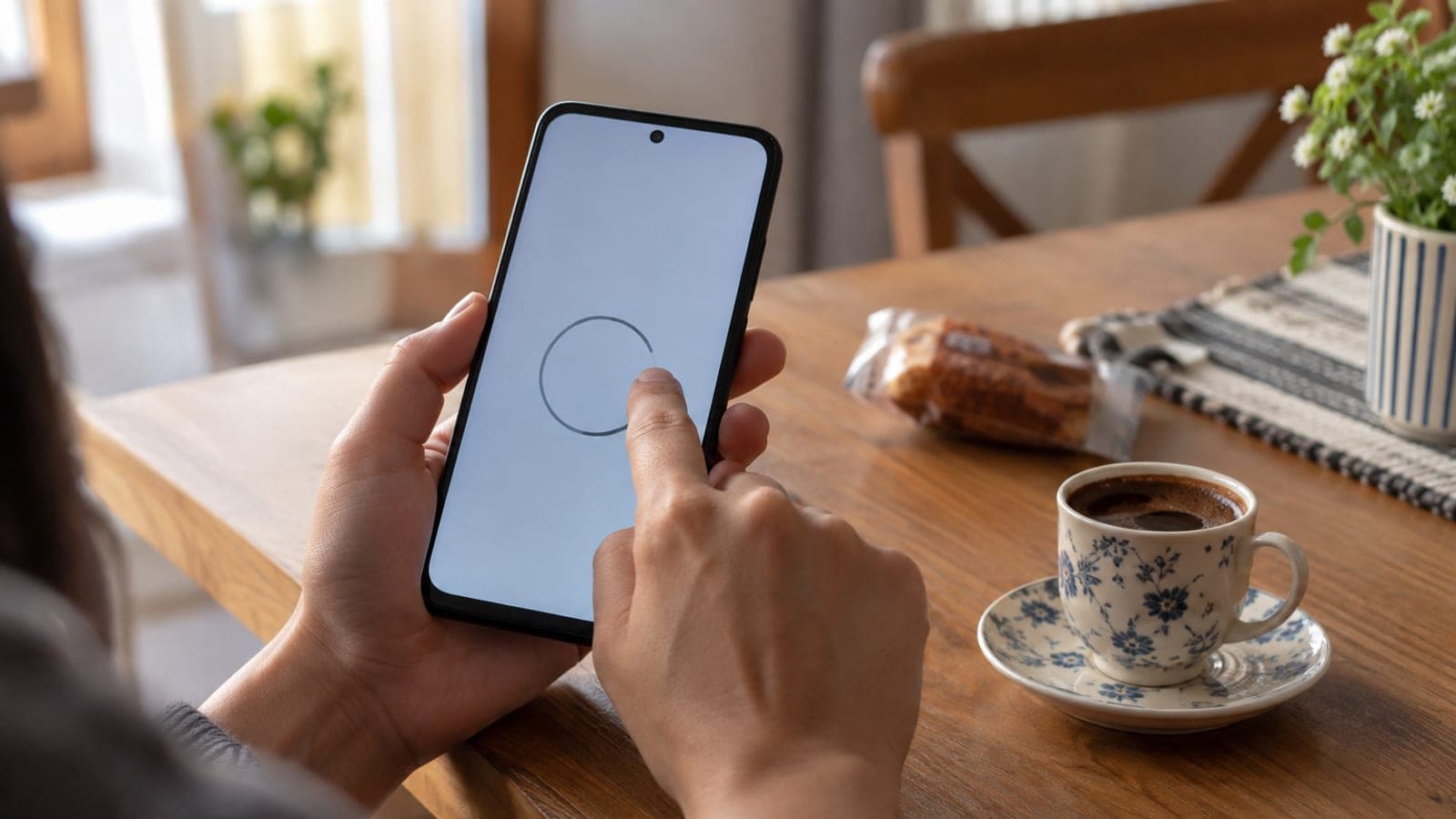
Short answer
With the content you want to look up on screen, long-press the home bar (or the power button on some Samsung phones), then circle or scribble over the area with your finger. Google opens a result in a bottom panel. If it misses, tap the search bar at the top and type a question such as "summarise this".
What you need
Step by step
Trigger the feature
Keep the content you want to search on screen and long-press the navigation bar. With gesture navigation, hold the thin line at the bottom edge; with three-button navigation, hold the home button. The screen shimmers and switches to drawing mode. On Samsung devices this shortcut may be assigned to holding the power button instead.
Select the area to query
Circle the region with your finger, draw a line across it, or simply tap it. Scribbling works better for text, while circling is more accurate for objects and faces. You can drag the edges of the selection to make it larger or smaller.
Read the result, add a question
Google shows a result or an AI summary in the bottom panel. If that is not the answer you wanted, tap the "Ask about this image" field at the top and type what you need: "Is this claim true?", "Summarise the selected text", or "Summarise this in bullet points".
Translate foreign text
When you select writing in another language, Google shows the translation in your phone's language. If no translation appears, type "translate to English" in the search bar. This is the single most useful case for text you cannot copy, such as menus, contracts and product labels.
Query labels and fault lights from photos
Take a sharp photo of a packaged food ingredient list, a dashboard warning light, or a blinking modem LED. Open the photo, call up Circle to Search, select the relevant area and add a question like "What does this warning light mean?" for a plain-language explanation.
Identify someone in a video
Pause the video on a frame where the face is clearly visible. Open Circle to Search and circle the face; the actor's name and credits appear in the panel. Type a follow-up question in the search bar if you want more detail.
Save or listen to the answer
If the panel shows a "Listen" button, you can have the text read aloud. Use "Export" to copy the answer or save it to Google Docs. For long explanations this is more practical than taking a screenshot and reading it later.
Tips
Watch out
AI summaries are not authoritative. For health, medication, food allergies, legal matters and vehicle faults, never treat the Circle to Search answer as the final word: check the product label, service manual or a qualified professional. Screen content is also sent to Google's servers, so avoid using it on screens showing ID, banking or health details.
Frequently asked questions
+Does Circle to Search work outside the US?
Yes, it works on supported Android phones in most countries and handles non-English text too. AI summaries do not appear for every query, in which case you type the question yourself.
+Is the feature available on iPhone?
No, Circle to Search is Android-only. The closest match on iPhone is Lens in the Google app or Visual Look Up in Photos; take a screenshot and search it with Lens for a similar result.
+The shortcut never opens, what should I do?
Update the Google app from the Play Store and confirm Google is set as your digital assistant. On Samsung devices the shortcut may be tied to the power button, so check Settings > Advanced features.
+Can I copy the text I selected?
Yes. After scribbling over text, a copy option appears in the panel. You can also copy the answer text with the "Export" button or save it to Google Docs.
+Does it use mobile data?
Yes, every query goes over the internet. Visual search uses slightly more data than a text search, but a single query stays in the range of a few hundred kilobytes.
Sources and verification
Published: September 12, 2026. tell us.
This content is for information only; for official procedures the relevant institution’s current announcements take precedence. Details: disclaimer.