How do you set up two-factor authentication?
Add app-based two-factor authentication to your Google, Apple, Instagram and e-government accounts in about 15 minutes.
Short answer
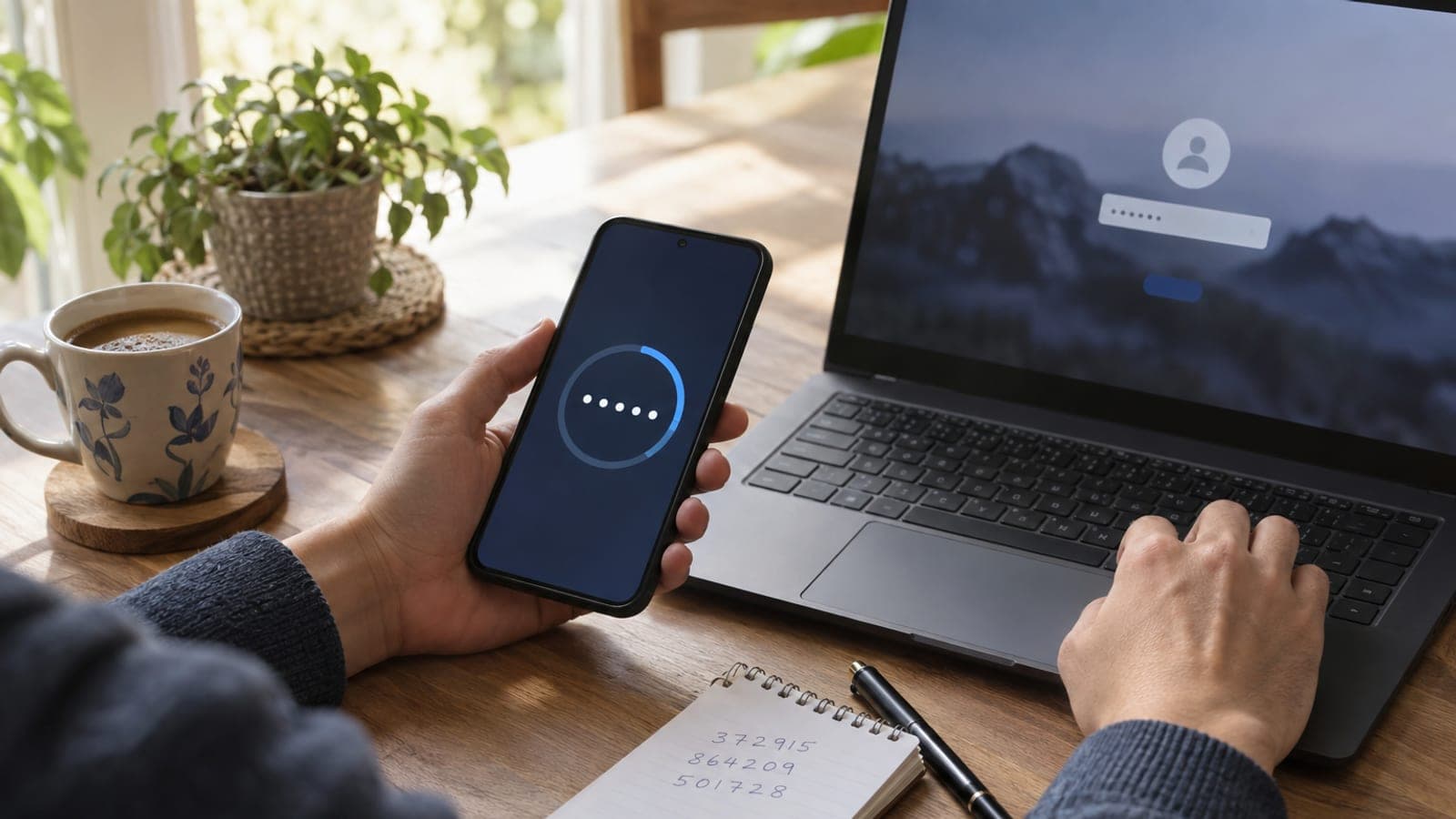
Install Google Authenticator or Microsoft Authenticator on your phone. Open the account's security settings (on Google: Manage your Google Account > Security > 2-Step Verification), turn on the "Authenticator app" option, scan the QR code on screen with the app, and type in the 6-digit code it shows. At the last step, write the backup codes on paper instead of saving a screenshot.
What you need
Step by step
Install an authenticator app
Search for "Google Authenticator" or "Microsoft Authenticator" in the Play Store or App Store and install it. The download is around 30 MB and takes a minute or two. App-generated codes are safer than SMS because they are not exposed to SIM swap attacks.
Turn on 2-Step Verification for Google
Go to myaccount.google.com, pick Security in the left menu, tap 2-Step Verification under "How you sign in to Google", then press Get started. Google asks for your password again. If it requests a phone number, skip it; you will add the app in the next step.
Scan the QR code with the app
On the 2-Step Verification page, choose Authenticator app > Set up authenticator. A QR code appears on screen. Open the authenticator app on your phone, tap Add a code > Scan a QR code, and point it at the screen. Type the 6-digit code from the app into the field on your computer and press Verify.
Get backup codes and write them down
On the same Security page, open the Backup codes section and press Get backup codes. You get ten 8-digit codes, each usable once. Write them on paper and store them somewhere separate from your wallet. If you lose your phone, these codes are your only way back into the account.
Check two-factor authentication on your Apple ID
On iPhone, go to Settings > your name at the top > Sign-In & Security > Two-Factor Authentication. For Apple IDs created after 2021 this is usually mandatory and already on. If it is off, tap Turn On and confirm your trusted phone number.
Protect Instagram and WhatsApp too
On Instagram, follow Settings and privacy > Accounts Center > Password and security > Two-factor authentication > your account > Authentication app. In WhatsApp, go to Settings > Account > Two-step verification, set a 6-digit PIN and add a recovery email address.
Set up your bank and e-government logins
On Turkey's e-Government Gateway, enable SMS confirmation under User Information > Login Preferences; the portal uses SMS and mobile signature rather than app-based 2FA. For banks, switch on the approval step inside the bank's own mobile app, such as Mobile Approval at Garanti BBVA.
Sign out and test the login
Once setup is done, open a private browsing window and sign in again. You should be asked for a 6-digit code and get in using the one from the app. If you skip this test, you will only find out something is wrong on the day you lose your phone.
Tips
Watch out
If you lose or reset your phone before saving backup codes, you are locked out. Account recovery at Google and Instagram can take weeks and sometimes never succeeds. Never keep backup codes in an email draft or as a screenshot in your photo gallery, because whoever takes over your account gets those too.
Frequently asked questions
+I lost my phone, how do I get into my account?
On the login screen, tap "Try another way" and enter one of your backup codes. Without a backup code you have to fill in Google's account recovery form, which can take days.
+Isn't SMS verification enough?
No. SIM swap and number-porting fraud can deliver SMS codes to someone else. App-based codes are generated inside your phone, so they avoid that risk.
+Do codes work without an internet connection?
Yes. Authenticator apps generate codes offline based on your phone's clock, so no internet or SIM card is needed. They even work in airplane mode.
+Will I have to enter a code every single time?
No. If you tick "Don't ask again on this device" on the code screen, your own computer will not be asked for 30 days. New devices and browsers are asked every time.
+Can I use the same account on two phones?
Yes. Add the setup QR code or the manual key to the app on the second phone as well. Both devices will produce the same 6-digit code.
Sources and verification
Official pages for this process
Published: September 13, 2026. tell us. Steps for Turkey's e-Government Gateway and local banks reflect Turkish services; menu names elsewhere may differ.
This content is for information only; for official procedures the relevant institution’s current announcements take precedence. Details: disclaimer.