How do you install an SSD and move Windows to it?
Fit the new SSD, clone Windows onto it, and finish the whole migration in two or three hours without a reinstall.
Short answer
Fit the SSD in the slot your machine supports (M.2 NVMe or 2.5-inch SATA), or put it in a USB enclosure. Initialize it as GPT in Disk Management, then clone the current Windows disk with Macrium Reflect Free or the drive maker's tool. When the clone finishes, set the SSD first in the BIOS/UEFI boot order, confirm Windows starts, and only then format the old disk.
What you need
Step by step
Confirm which SSD fits
Type "System Information" in Start and note your model, then check the slot type on the manufacturer's support page or with Crucial System Scanner. On a desktop, count the M.2 slots on the motherboard; on a laptop, check whether there is a 2.5-inch bay. NVMe drives are roughly five to six times faster than SATA, but older laptops only support SATA.
Back up your data and free up space
Cloning rarely loses data, but copy Desktop, Documents, and Pictures to an external drive first. Then clear junk from Settings > System > Storage > Temporary files, because the used space on the source disk has to be smaller than the new SSD's capacity.
Install the SSD or put it in an enclosure
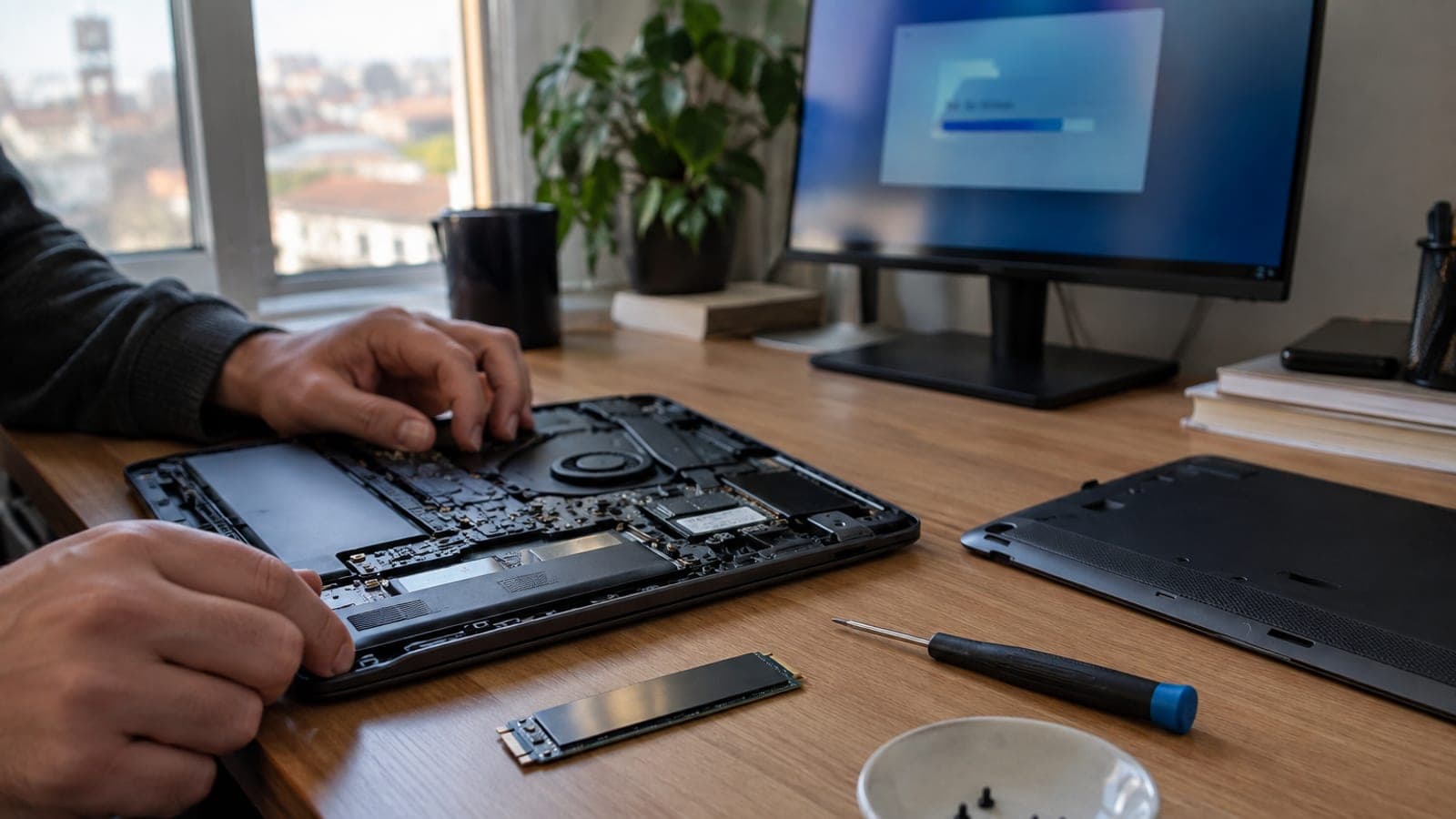
Shut down, unplug the power cable, and either remove the laptop battery or hold the power button for 10 seconds to discharge static. If there is a free slot, insert the SSD at about a 30-degree angle and screw it down; if the only slot is taken, place the SSD in a USB enclosure and connect it. This takes 10 to 20 minutes.
Initialize the new disk in Disk Management
Boot Windows, right-click Start, and choose Disk Management. If the "Initialize Disk" dialog appears, select GPT and click OK; if it doesn't, right-click the disk and choose Initialize Disk. If the disk isn't listed at all, recheck the cable or the M.2 screw.
Install the cloning tool and pick the source
Samsung drives come with free Samsung Data Migration and Crucial drives with a free Acronis edition; Macrium Reflect Free works with any brand. Open the program, click "Clone this disk", then select the disk holding your C: drive as the source and the new SSD as the destination.
Start the clone and resize the partitions
In Macrium, drag every partition from the source into the "Copied Partitions" area, then click the C: partition and use Partition Properties to fill the free space. Choose Next > Finish and start the clone. Expect 40-60 minutes on SATA or 15-25 minutes on NVMe for 250 GB of data, and don't shut the machine down while it runs.
Change the boot order in BIOS/UEFI
Shut down, power on, and press Del, F2, or F10 while the brand logo shows (Asus F2, HP F10, Lenovo F2 or Fn+F2, Dell F2). On the Boot or Boot Priority tab, move the new SSD to first place and press F10 for Save & Exit. On a desktop, temporarily unplugging the old disk removes any doubt about the order.
Verify the boot and wipe the old disk
Once Windows starts, search Start for "Defragment and Optimize Drives" and check that the SSD is listed as "Solid state drive" with TRIM running. Confirm your programs open and that Settings > System > Activation shows Windows as active. If everything checks out, format the old disk in Disk Management and keep it as secondary storage.
Tips
Watch out
Swapping source and destination during cloning wipes your old disk instead of the new SSD and destroys all of your data. Read the destination disk's capacity and model name twice on the clone screen, and if you have any doubt, leave the old disk unformatted for a week.
Frequently asked questions
+Do I have to reinstall Windows?
No. Cloning carries over every program, setting, and file exactly as it was. A clean install only makes more sense if the current installation already has serious software problems.
+How large should the SSD be?
500 GB covers Windows and everyday programs, while 1 TB is comfortable if you install games. The new SSD should be at least 20 percent larger than the used space on the old disk.
+The PC won't boot after cloning. What now?
Check that the SSD is first in the BIOS boot order and that Secure Boot and UEFI mode match the old disk's settings. If that fails, boot the Windows installer USB and run bootrec /rebuildbcd from Repair > Command Prompt.
+What do SSDs cost?
From known brands, a 500 GB NVMe drive typically runs about 35-55 USD and a 1 TB NVMe about 60-100 USD. Prices move often, so check current listings before buying.
+Does opening a laptop void the warranty?
In most markets consumer law prevents a warranty being cancelled outright over a memory or storage upgrade, but damage you cause to the parts you touch is not covered. If unsure, have a service shop do the install for a small fee.
Sources and verification
Official pages for this process
Published: September 14, 2026. tell us. Prices converted to USD ranges and warranty guidance generalized, since the source figures were specific to Turkey.
This content is for information only; for official procedures the relevant institution’s current announcements take precedence. Details: disclaimer.