How do you connect a printer to Wi-Fi and print from a phone?
A 20-minute walkthrough for joining a printer to your home Wi-Fi and printing wirelessly from an iPhone or Android phone.
Short answer
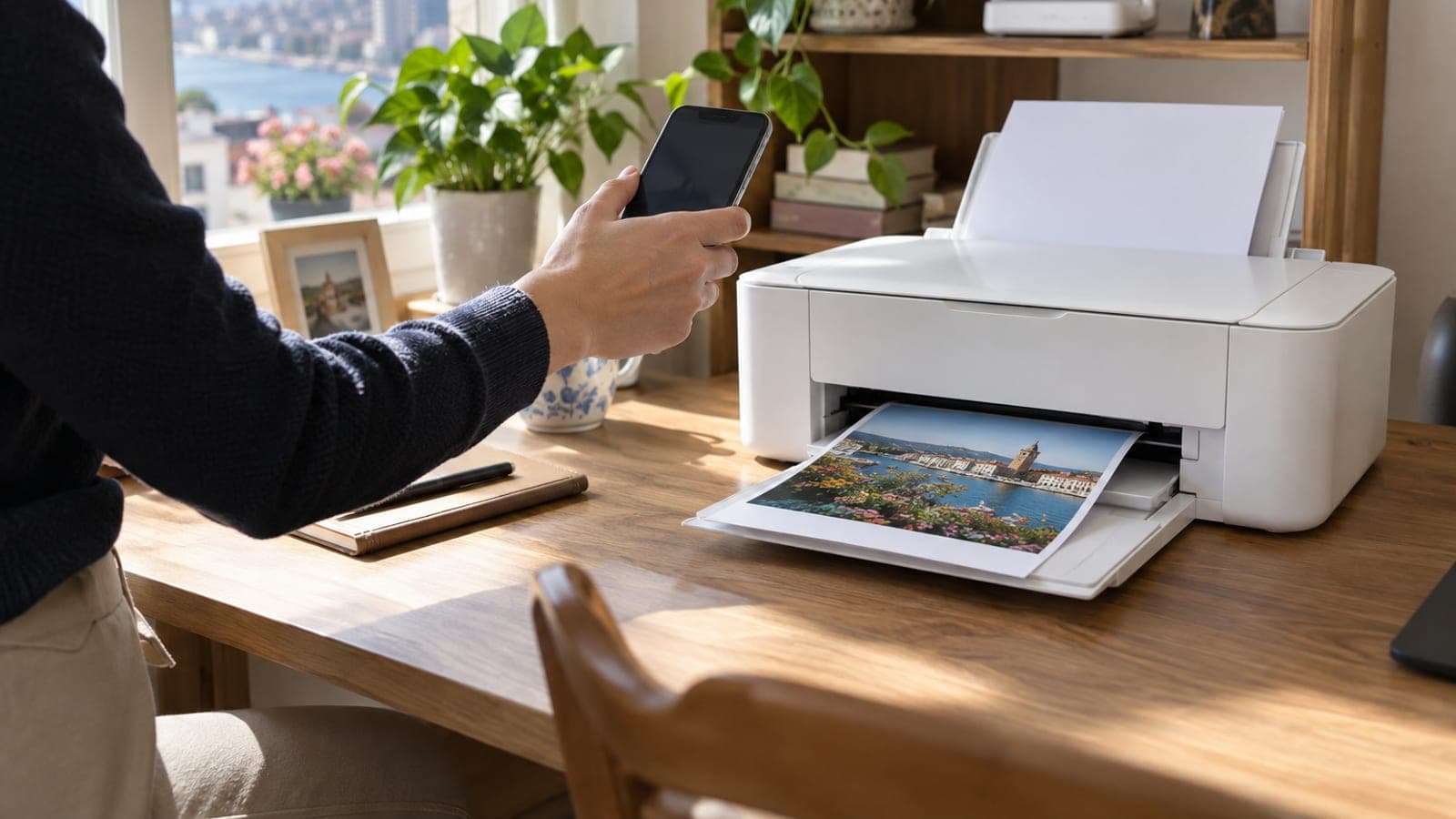
On the printer panel open Wireless > Wireless Setup Wizard, pick your home network and type the Wi-Fi password. Put the phone on that same network, then on iPhone tap Share > Print (AirPrint) or on Android tap Share > Print with Mopria Print Service enabled, and choose your printer. Budget 15-20 minutes end to end.
What you need
Step by step
Separate the 2.4 GHz network
Most home printers only see 2.4 GHz Wi-Fi, so a 5 GHz network never shows up in the list. Log in to the router (usually 192.168.1.1 or 192.168.0.1), open Wireless > Band Steering and turn it off, then give the 2.4 GHz band its own name such as HOME-24G. Doing this first removes the single biggest cause of failed setups.
Finish the printer's first-run setup
Plug the printer in, seat the cartridges and load 10-15 sheets of A4 in the tray. If it asks for a language and country, pick yours. The first power-on runs a 3-5 minute alignment routine; wait for it to end before touching any network settings.
Run the Wireless Setup Wizard
On the printer screen go to Settings (gear icon) > Network Setup > Wireless Settings > Wireless Setup Wizard. On Epson it is Wi-Fi Setup > Wi-Fi Setup Wizard, on Brother it is Network > WLAN > Setup Wizard. Choose your 2.4 GHz network, enter the password, and the Wi-Fi light should go solid within 30-60 seconds.
Use WPS on a screenless printer
With no keypad, hold the Wi-Fi button on the printer for 3-5 seconds until its light blinks, then press the router's WPS button for 3 seconds within the next two minutes. The printer's Wi-Fi light stops blinking once the link is up. This works on most TP-Link, Zyxel and Huawei routers.
Install the manufacturer app
From the App Store or Google Play get the app for your brand: HP Smart, Epson Smart Panel, Canon PRINT Inkjet/SELPHY or Brother Mobile Connect. Tap Add Printer > search for printers on the network and select your model. You also need the app for ink levels, scanning and firmware updates.
Print from an iPhone with AirPrint
Confirm the phone is on the same Wi-Fi network as the printer. Open the file, photo or Safari page, tap Share (the box with an arrow) > Print, pick your model on the Printer row, then tap Print at the top right. Copy count and colour or black-and-white live on that same screen.
Turn on Android's print service
Go to Settings > Connected devices > Connection preferences > Printing and enable Mopria Print Service or your brand's plug-in. Then open the file, tap the three-dot menu or Share > Print, and select the printer. On Samsung phones the path is Settings > Connections > More connection settings > Printing.
Print a test page and pin the IP
From the printer menu print Settings > Reports > Network Configuration Page and note the IP address, for example 192.168.1.35. To stop the connection dropping later, add the printer's MAC address under DHCP > Address Reservation or Static DHCP in the router and lock that IP to it. Finish by printing a photo to check colour and alignment.
Tips
Watch out
The most common mistake is leaving the phone on the 5 GHz band while the printer sits on 2.4 GHz: they count as separate networks, so the phone never sees the printer at all. Also avoid resetting the printer's wireless settings mid-setup, because that breaks existing computer print queues and you will have to add the printer again on every computer.
Frequently asked questions
+My phone does not list the printer at all. What now?
Check the SSID on the Network Configuration Page to confirm both devices are on the same network. Toggle airplane mode for 10 seconds, restart the router, and make sure neither device is on the guest network.
+My printer has no AirPrint. Can I still print from an iPhone?
Yes. Print through the manufacturer app such as HP Smart, Epson Smart Panel or Canon PRINT; these find the printer with their own protocol and do not need AirPrint.
+How long does setup take and does it cost anything?
Around 15-20 minutes including the router change. The apps are free and no extra hardware is needed, though a USB cable helps if the printer has no screen.
+Can I print from my phone with no home Wi-Fi?
Yes. Enable Wi-Fi Direct on the printer, join the network starting with DIRECT- from your phone's Wi-Fi list using the password shown on the printer, then use the normal Print menu.
+Why do my jobs sit in the queue forever?
Usually the printer's IP address changed via DHCP. Get the new IP from the Network Configuration Page, reserve it with static DHCP in the router, then clear the print queue.
Sources and verification
Official pages for this process
Published: September 14, 2026. tell us. Menu wording follows the English interface; localised firmware may label the same items slightly differently.
This content is for information only; for official procedures the relevant institution’s current announcements take precedence. Details: disclaimer.