How do I open a notification in a pop-up window on Samsung?
On Samsung phones, long-press a notification and drag it onto the screen to open that app in a pop-up or in split screen.
Short answer
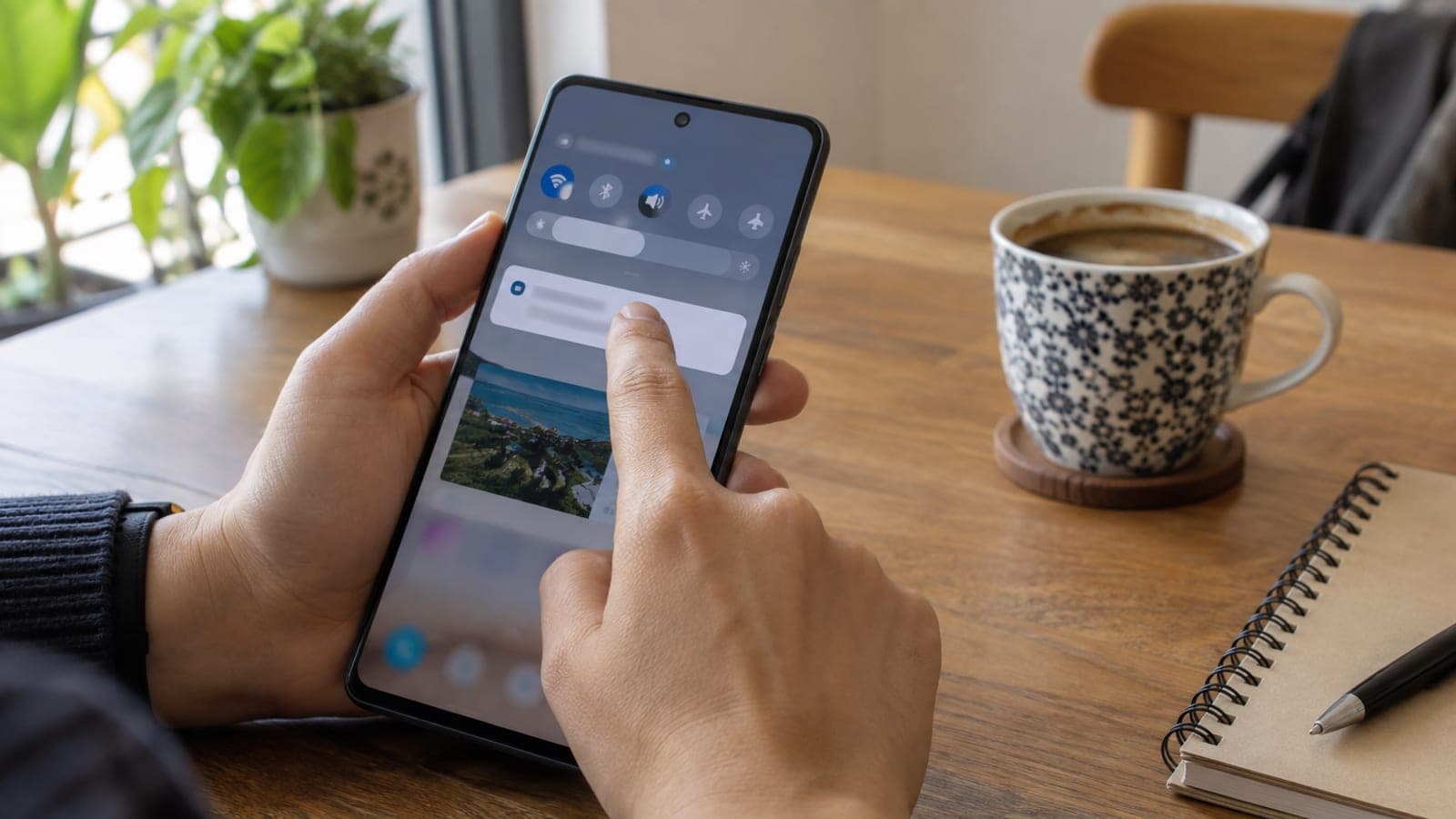
Pull down the notification panel, press and hold the notification, then drag it without lifting your finger. Drop it in the middle of the screen to get a floating pop-up window, or drop it against the right or left edge for split screen. There is no separate setting for this; the gesture itself does the work.
What you need
Step by step
Open the app you want to keep on screen
Start with the app that should stay visible, such as YouTube, a browser, or a notes app. The notification you drag will be added on top of it as a second window. In full-screen games and some video players the gesture may not register at all.
Pull down the notification panel
Swipe down from the top edge of the screen to open the notification panel and find the notification you want. If several notifications are bundled into one group, expand the group first and pick a single notification for more reliable results.
Press and hold, then drag the notification
Hold your finger on the notification until you feel a short vibration; the notification shrinks and sticks to your finger. Keep holding and drag it into the screen area. As you move, One UI draws faint outlines showing where you can drop it.
Drop it in the center for a pop-up
Release your finger inside the square outline in the middle of the screen and the app opens in a small floating window. It behaves like a desktop window: drag the title handle to move it, and pull any corner to resize it.
Drop it on an edge for split screen
If you want the two apps side by side or stacked, release your finger on the outline at the top, bottom, left, or right edge. The app you already had open shifts into the other half, and both run together in split screen view.
Adjust or close the window
Tap the handle at the top of a pop-up window to reach transparency, full screen, and minimize options. In split screen, drag the divider in the middle to change the ratio, or push it all the way to an edge to close the second app.
Tips
Watch out
The gesture only starts after you hold the notification and wait for the vibration. Swiping right away either dismisses the notification or opens the app full screen. Banking apps and some streaming services may also close themselves or black out the screen in multi-window for security reasons.
Frequently asked questions
+Which Samsung models support this?
Nearly every Galaxy phone and tablet on One UI 3 or newer. Since there is no separate menu for it in Settings, the fastest check is simply to try the gesture.
+Does it work on other Android brands?
No, dragging a notification into a window is a One UI feature. On Xiaomi, Oppo, or Pixel phones you have to start split screen from the recent apps screen instead.
+Why doesn't the app open when I drag it?
The app probably does not support multi-window. Enable the force switches under Settings > Advanced features > Labs and try the drag again.
+Can I resize the pop-up window?
Yes, drag any corner of the window to the size you want. The handle at the top also lets you set transparency or shrink the window into a bubble.
+How many apps can I open at once?
On phones you normally get two apps in split screen plus one pop-up on top. Large tablets support three split panes and several pop-up windows.
Sources and verification
Official pages for this process
Published: September 13, 2026. tell us. Menu names follow English One UI; on a Turkish device look for Ayarlar > Gelişmiş özellikler > Labs.
This content is for information only; for official procedures the relevant institution’s current announcements take precedence. Details: disclaimer.