How do you use a Wacom drawing tablet on a Chromebook?
Connect a Wacom tablet to your Chromebook over USB-C and start drawing in minutes, with pressure sensitivity actually working.
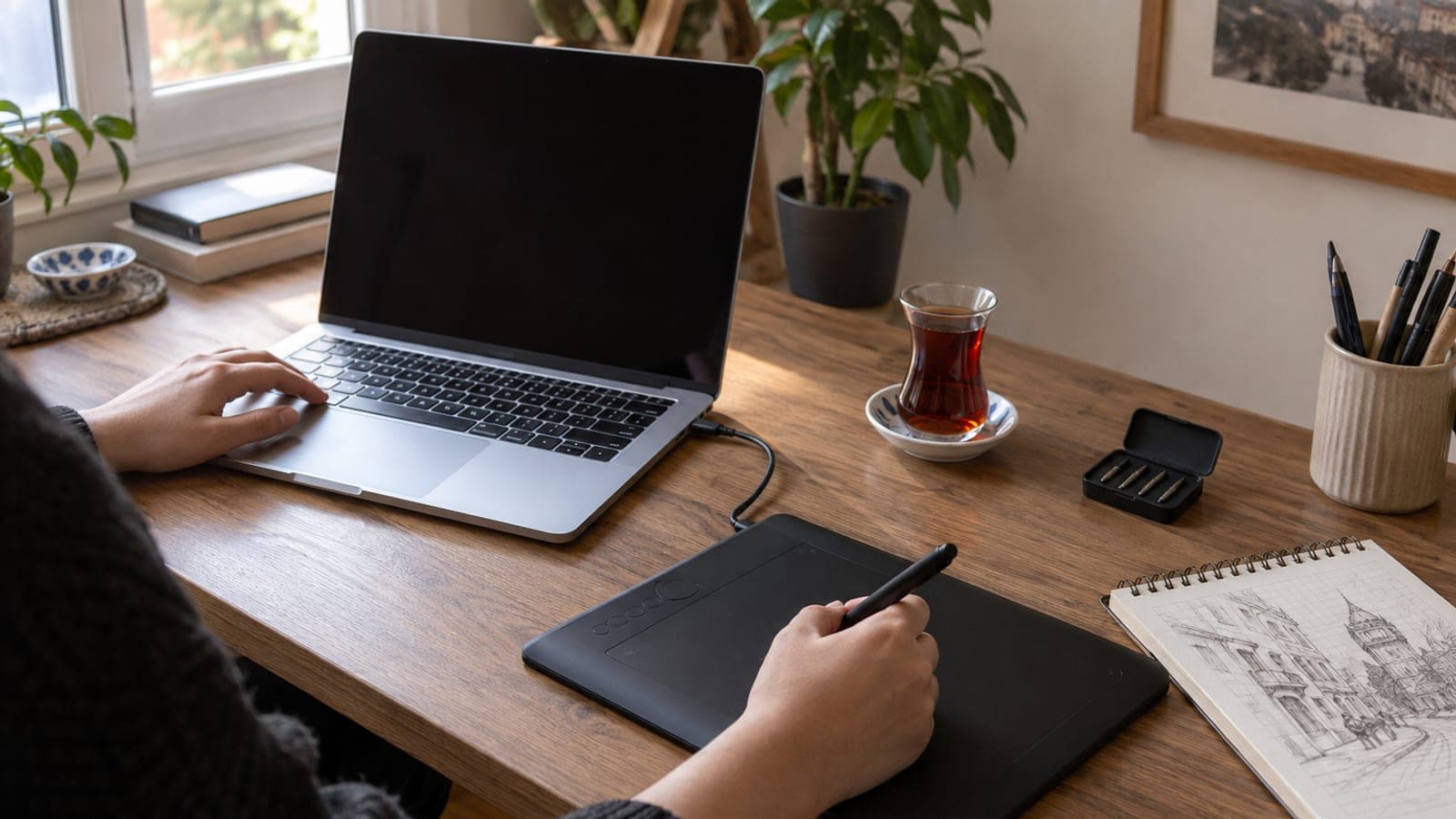
Short answer
Plug the Wacom tablet into your Chromebook's USB-C port. ChromeOS recognizes it without any driver install and the pen cursor works right away. Pressure sensitivity is not supported in every ChromeOS app, so install an Android drawing app from the Play Store (Ibis Paint X, Infinite Painter) or Krita through Linux and draw there.
What you need
Step by step
Update the Chromebook
Go to Settings > About ChromeOS > Check for updates, install anything pending, and restart. Tablet support and pen drivers ship inside ChromeOS itself, so a current build gives you the best odds of clean detection.
Connect the tablet over USB-C
Plug the tablet's cable into your Chromebook's USB-C port. There is nothing to download; ChromeOS treats the tablet as plug and play. If the cable ends in USB-A, put a USB-A to USB-C adapter in between.
Test the pen
Hover the pen over the tablet surface and watch the on-screen cursor follow it. A pen tap acts as a single click, and the side button usually acts as a right click. If the cursor does not move, try a different port and test again.
Install a drawing app
Open the Play Store and download an Android drawing app such as Ibis Paint X, Infinite Painter, or Sketchbook. These read pen pressure, so your strokes get thicker as you press harder. Some browser-based editors ignore pressure entirely.
Turn on Linux and add Krita
For more serious work, enable Linux under Settings > Developers > Linux development environment, then run `sudo apt install krita` in the terminal. Krita reads the Wacom pen with pressure and tilt, and its layer tools match desktop software.
Set up your workspace
In the app's pen settings, tune the pressure curve and brush size to your hand. If the tablet's active area does not match the screen, fix the ratio in the app's tablet or stylus settings. Map the Wacom side buttons to the commands you use most, like undo and brush switch.
Tips
Watch out
Wacom's desktop driver and the Wacom Center software do not run on ChromeOS, so hunting for an .exe or .dmg download is wasted effort. Button mapping and pressure settings can only be configured inside the drawing app you use, which makes your app choice more critical than the tablet itself.
Frequently asked questions
+Do I need to install a driver for a Wacom tablet on a Chromebook?
No. ChromeOS supports these tablets as plug and play, and the pen cursor starts working the moment you connect the cable. There is no separate driver to download.
+Do screen-based Wacom models like the Cintiq work on a Chromebook?
Pen input usually works, but sending video to it as a second display requires a USB-C port with DisplayPort support. Entry-level Chromebooks may lack that, so check the port specs before buying.
+Why does pressure sensitivity fail in some apps?
Some native ChromeOS and web-based apps never read pen pressure data. Android and Linux apps do support it, so try Ibis Paint X or Krita instead.
+Which Wacom model makes the most sense to buy?
One by Wacom or the Intuos S are the budget-friendly starting points and are widely stocked by electronics retailers and online marketplaces. For Chromebook use, screenless models give better value.
+What should I do if the tablet is not detected?
First move the cable to another USB-C port and take any adapter out of the chain. If it persists, restart the Chromebook and check for a ChromeOS update; cheap adapters are the most common culprit.
Sources and verification
Official pages for this process
Published: September 11, 2026. tell us. Menu paths use the English ChromeOS interface labels; Turkish builds show the same items under translated names.
This content is for information only; for official procedures the relevant institution’s current announcements take precedence. Details: disclaimer.