How do I try HelenOS in a virtual machine?
A guide to running HelenOS, a microkernel system with a Windows 3.1 look, without touching your real computer.
Short answer
Download the amd64 live ISO from helenos.org. In VirtualBox, create a machine of type "Other/Unknown (64-bit)" with 1 GB of RAM and no virtual hard disk. Attach the ISO to the optical drive and start the machine; the system boots straight from the ISO, so no installation is needed.
What you need
Step by step
Download the ISO
Open the download section on helenos.org and pick the live CD image that matches your architecture. On any modern computer the amd64 build is the right choice. The file is small, so the download takes only seconds.
Install the virtualization software
Download and install VirtualBox from its official site. If you have never used a virtual machine before, VirtualBox is the most approachable option; if you are comfortable with the command line, QEMU can launch the image in a single line. Restarting your computer once after installation avoids driver issues.
Create the new virtual machine
Click "New" in VirtualBox and name the machine HelenOS. Set Type to "Other" and Version to "Other/Unknown (64-bit)". 1024 MB of memory is plenty, and 1 or 2 CPU cores both work fine.
Skip the virtual hard disk
At the hard disk step, choose "Do Not Add a Virtual Hard Disk". HelenOS runs directly from the live image, so there is nothing to install to a disk. If VirtualBox shows a warning, confirm it and continue.
Attach the ISO to the optical drive
Select the machine and go to "Settings > Storage". Click the empty optical drive, then use the disk icon to pick the ISO you downloaded. In the System section, make sure the optical drive is checked in the boot order.
Start the machine and explore
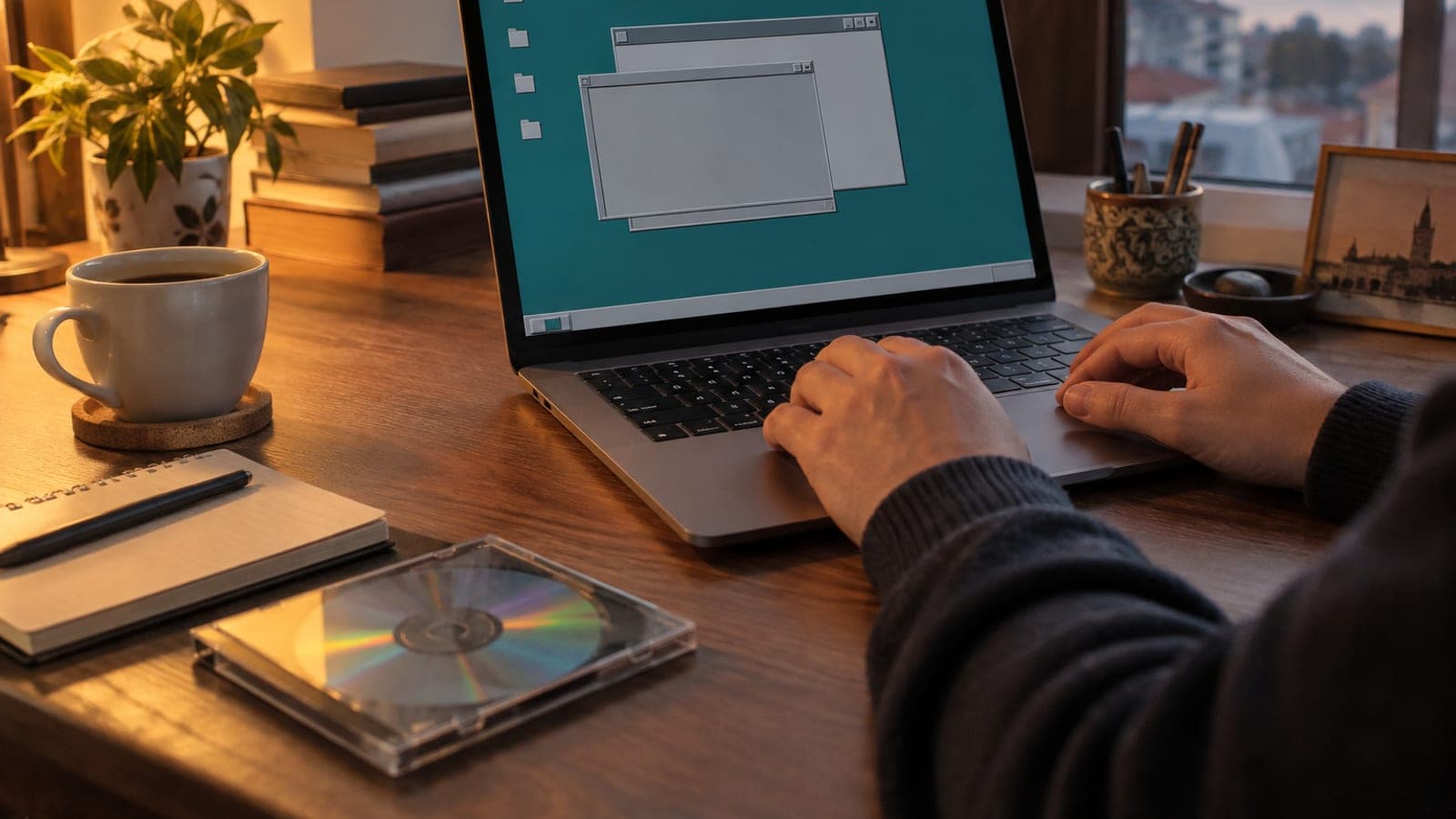
Press "Start" and within a few seconds a desktop reminiscent of Windows 3.1 and 95 appears. Open and close windows, launch the bdsh shell and try a few commands, and look at the small demo apps that ship with it. If the mouse pointer gets captured by the virtual machine, the right Ctrl key releases it.
Shut the experiment down cleanly
When you are done, close the VirtualBox window and choose "Power off the machine". Since you have no data to save, this is perfectly safe. To remove the machine, right-click it in the list and choose "Remove > Delete all files".
Tips
Watch out
HelenOS is still an early-stage research system and is not suitable for daily use, work files or online banking. There is no risk as long as you stay in a virtual machine, but attempting to install it on your real disk can damage your current system's boot record.
Frequently asked questions
+What is HelenOS for, can it replace Linux?
No. HelenOS is a research project written to experiment with operating system design. It is ideal for learning and curiosity, not as an everyday work computer.
+Can it damage my computer?
Not as long as you run it in a virtual machine. The VM stays inside its own box and never touches your real disk or files.
+Why does it look like Windows 95?
The developers focused on the system's core architecture rather than visual effects, so the interface stayed plain. That simplicity inevitably gives off a 90s desktop vibe.
+Is there Turkish keyboard and language support?
There is no Turkish interface, and keyboard layout support is limited. Trying it with the English interface and an English layout is the most practical route.
+I get a "virtualization is not enabled" error, what should I do?
You need to enable Intel VT-x or AMD-V in your computer's BIOS/UEFI settings. On Windows, Hyper-V can conflict with VirtualBox, so turning it off often helps too.
Sources and verification
Published: September 11, 2026. tell us. Menu names refer to the English-language VirtualBox interface.
This content is for information only; for official procedures the relevant institution’s current announcements take precedence. Details: disclaimer.